REFERRAL Codes and
Sources
OVERVIEW:
The Referral Codes Table will allow the user
to enter referring physicians and referring
sources for the patients. These codes will be
used
for EDI billing and hardcopy claims, when
necessary, to identify the referring provider.
PROCEDURE:
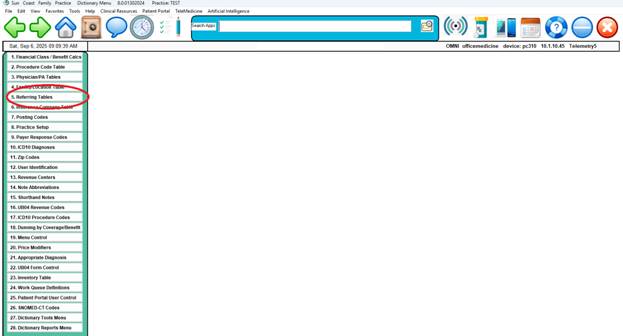
Select Option 5 from the Tables/Dictionary Menu.

______________________________________________________________________
After you select Option 5, the screen on the next
page will display.
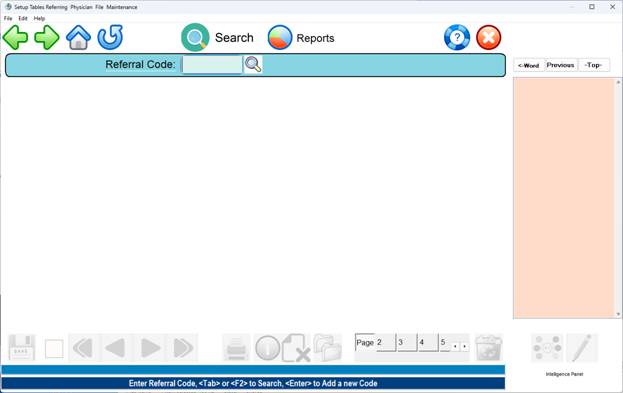
Press
the <Enter> key to automatically generate the referral code or
manually enter up to 11
characters alpha/numeric or combination of both)
If you do not know the referral code, type a
few letters of the referral
Name. The list of existing codes will display as you are
typing.
You may
also click the search icon or press the search key (<Tab> or F2)
A search
screen will display existing referrals.
Highlight your selection and click or press
<ENTER KEY>.
If a new code entered is not on file,
the system will prompt.
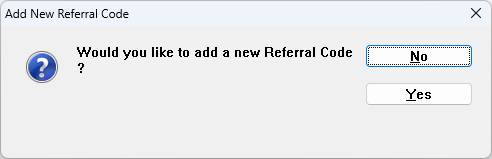
If you do not want to add this code, type or click N.
The
cursor will return to the ENTER CODE prompt.
If you
do want to add this code, type a Y.
The
Referral Source Definition module below will be displayed.
For a
complete listing of Referral database click on the “Reports”
icon and follow the prompts.
Other referring code reports are
located on the dictionary reports
menu.
EXAMPLE SCREEN:
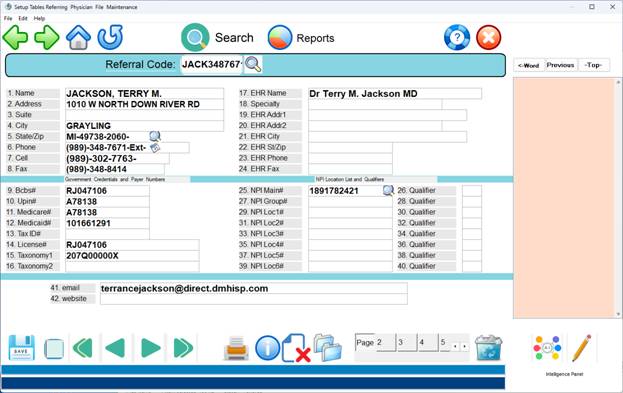
1.
Name: Type the referring physician's
name (last name
first, then comma and first name followed by any title
abbreviations). Press <ENTER KEY>. Example: WELBY, MARCUS MD
2.
Address: Type in the referring
physician's street address
and <ENTER KEY>. DO NOT USE lower case letters as
"5th". The
street address should appear as follows: 13325 5TH AVE.
3.
RF_ADD2: If the address contains a suite
number, enter the
number here and <ENTER KEY>. Example:
Suite 102. DO NOT USE any
punctuation or a "#" to indicate the room number.
4.
City: Enter the City and press <ENTER
KEY>.
5.
State/Zip: Enter a two-digit post office
abbreviation for
the state. Enter the
zip code (this field will hold up to
13
numbers) and press <ENTER KEY>.
6.
Phone: Type the referring physician's
telephone number.
Enter
the area code first, the phone number second, an extension
third, and then press <ENTER KEY>. If there is no extension, press
<ENTER KEY> after entering the phone number. This field is used
by TPA.
7.
RF_CELL_NO: Enter the pager number of
the referring source
and press <ENTER KEY>.
If there is no extension, press <ENTER KEY>
to bypass that field.
This field is used by TPA.
8. RF-FAXNO: Enter the fax or private number of the
referral
and press <ENTER KEY>.
9.
BCBS#: Enter the Blue Cross/Blue Shield legacy
ID number of the
referring source and press <ENTER KEY>. This is used
for out of
network PPO providers.
10.
UPIN#: Enter the Medicare UPIN number
here and press
<ENTER KEY>.
11.
Medicare#: Enter the Medicare ID number
of the referring
source and press <ENTER KEY>.
12.
Medicaid#: Enter the Medicaid Provider
Code (this consists of
7
digits for actual Provider Code plus 2 digits that identify
the Provider Type) of the referring source. Do not use dashes,
slashes or spaces.
13. TaxID#: Enter the
Tax-ID# number of the referring
source and press <ENTER KEY>. Commercial hardcopy uses this.
14.
RF LIC NO: Enter the referring source's
license number and
press <ENTER KEY>.
This is a 6 digit number preceded by the initials
of the first and last name.
Do not use dashes, slashes, or spaces.
Example: SH123456
15. TAXONOMY
1: Type of referral to be used for
medical reporting
purposes.
16. TAXONOMY
2: Type of referral to be used for
insurance reporting
purposes.
17. EMR
Name: Enter the version of the Physician
name to display
in the EMR screens and charts.
18.
SPECIALTY: If the referring physician
has a specialty,
you may enter that specialty here. Maximum of 25 characters
including spaces.
19-24.
These fields are for EMR use. Fill in as appropriate.
25-31.
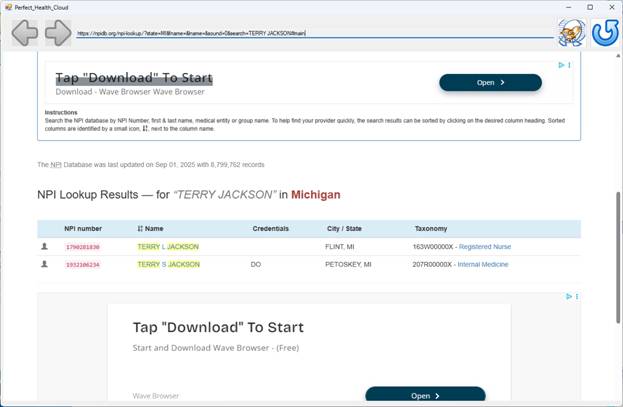
Populate at least field 25 with the Physicians individual
NPI. All existing NPPES NPIs can be searched with the search
icon.
Example NPPE NPI search screen:
REFFERAL
SEARCH:
At
the ENTER CODE prompt, type the first letter or letters of
the referring source and press <Tab>. The system will open a
window in the middle of your screen displaying all the
sources
in the system that start with those letters.
EXAMPLE
SCREEN:
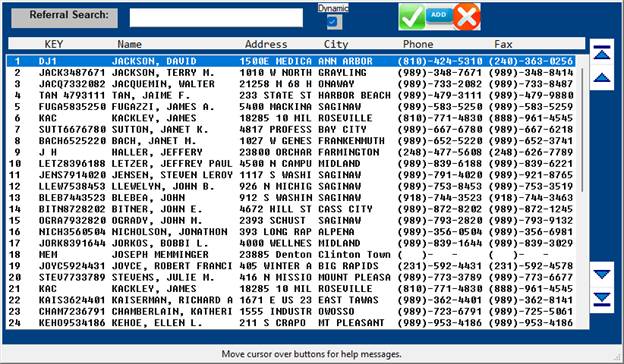
In
this example we have entered JAC. After
you click search,
a screen similar to the one below will be displayed.
EXAMPLE
SCREEN:
<Up>=Last Name,<Down>=Next
Name,<Right>=Next Page,<Left>=Last Page
<Up>/<Down> <Right>/<Left> refer to
Arrow keys.
The
screen displays referring sources in the system starting
with the letters you entered. The name of each referring
source is preceded by the code which identifies it. To
select
a source, at the flashing cursor type the number to the far
left of the source and press <ENTER KEY>, or highlight
the line
using the
<Up>/<Down> arrow keys and then press <ENTER KEY>. In
either case, the system will display the information on the
source you selected to your screen.
To
exit a search screen, type 0 (zero) and press <ENTER KEY>.
ACTION-> (Enter # to correct,(P)rt,(F)wd,(B)ck,(K)py,(D)el,(V)fy,Esc=END
Enter
# to correct: Enter the number of the
field you need to
correct and press <ENTER KEY>. The cursor will move to the first
character on that line (information on that line will not
be
erased). You may retype the entire line, or position the
cursor
on the character that needs correcting. Press <Home> to go
back to the Action Line.
(P)rint: Type P and press <ENTER KEY> to print a
hard copy of
the information. The
system will open a window in the
middle of your screen listing output devices. Please see
the example below.
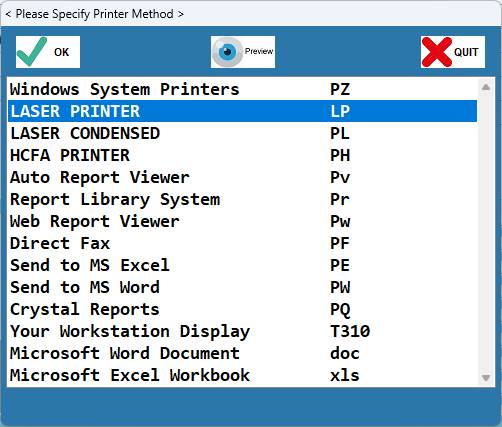
Type
in the number of your selection at the flashing cursor
and press <ENTER KEY>.
You may also use the <Up>/<Down> arrow
keys to highlight your selection and then press <ENTER
KEY>.
(F)orward: To go forward one code, type F and press
<ENTER KEY>.
(B)ack: To go back one code, type and press <ENTER KEY>.
(K)opy: To make a copy of this information (be sure
you O (zero)
and <ENTER KEY> to save it before you copy) and assign
it a different
referral code, type K and press <ENTER KEY>. The cursor will move to
the ENTER CODE prompt.
Enter the in-house referral code you wish
this information copied to and press <ENTER KEY>.
(D)elete: If you want to delete this referral code from
the
system, enter a D and press <ENTER KEY>. Do not delete a referral
code that has been used.
(V)erify: Type V to verify the original entry date
and/or
the date this screen was last updated.
Esc=END: To save your entry and
exit to the ENTER CODE prompt
type 0 (zero) and press <ENTER KEY>. You may enter more codes
or type O (zero) and press <ENTER KEY> again to go to
the
Dictionary Menu.
ARROW KEY
FUNCTIONS
<Up>/<Down> Directional Arrow Keys: When at the Action
Line,
you may press the <Up> arrow key to have the cursor
move to the last field.
From there you may <Up> arrow all
the way to Field 1.
From Field 1, you may <Down> arrow to
the last field. Field
entries will not be erased. You may
edit any field. To
return to the Action Line from any field,
press the <Home> key.
<Right>/<Left> Directional Arrow Keys: When making corrections,
use the <Right>/<Left> arrow keys to locate the
area for correct-
ing without erasing any of the
other information. To return to
the Action Line, press the <Home> key.
Note: Office Medicine can pre-load all NPIs for a given
state or zipcode
by request.