CARRIER
(INSURANCE) CODES
OVERVIEW: The
Carrier Codes Dictionary is used to record
the name and address of private carriers along
with their
coverage definitions and payer ID number.
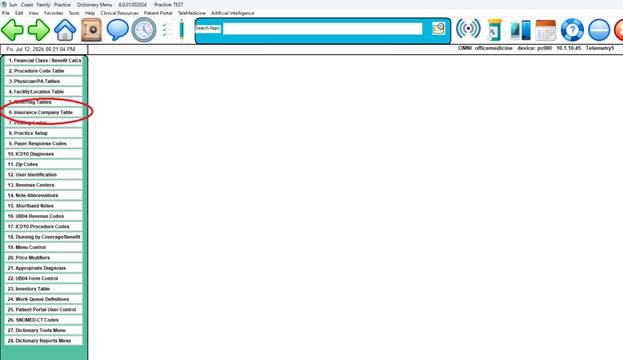
PROCEDURE: From the Dictionary Menu, select Option
6,
Carrier Codes, and press <ENTER KEY>.
EXAMPLE
MENU:
______________________________________________________________________
After
you select (or CLICK) Option 6, the screen on the next page will be
Displayed.
ENTER
CODE: Enter up to a ten-digit code
(letters and/or numbers).
*If
you intend to use the Combination Matrix, this code may not
exceed five characters.
If this code is not on file, the following
message will be displayed at the bottom of your screen.
NOT ON FILE ADD? (Y=YES,
N=NO)
If
you do not want to add this code, type an N and press <ENTER KEY>.
The
cursor will return to the ENTER CODE prompt.
If
you do want to add this code, type a Y and press <ENTER KEY>.
The
following screen will be displayed.
EXAMPLE SCREEN for Medicare Code MR:
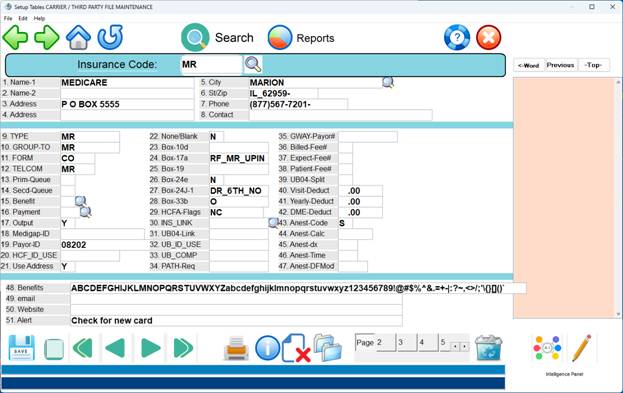
1. INS_NAME1: Enter the
first line of the Company Name, up
to 35 characters, and press <ENTER KEY>. This is the name that
appears when searching.
2.
LINE 2 OF INS_NAME: Enter the second
line of the Company
Name,
(or ATTN: someone) up to 35 characters, and press <ENTER KEY>.
If
you only need to use one line, press <ENTER KEY> to leave line 2
blank.
3. INS_ADD1: Enter the
first line of the address, up to
25
characters, and press <ENTER KEY>.
4. INS_ADD2: Enter the
second line of the address, up to
25
characters, and press <ENTER KEY>.
5. INS_CITY: Enter the
name of the City and press <ENTER KEY>.
6. INS_STZP: Enter the
two-letter post office abbreviation
for the State followed by the zip code and press <ENTER
KEY>. The
zip code field will hold up to nine numbers.
It
is important to have the correct CITY/ZIPCODE to minimize rejections.
7. INS_TELE: Enter the
area code first followed by the
telephone number.
This field allows for entry of an
extension if necessary.
If their is no extension, press
<ENTER KEY> after completing the telephone number to go to
the
next field.
8. INS_CONT: Enter the
name of the person to contact there.
9.
INS_TYPE: Enter the type of insurance:
BS MR MD WK or CO.
This
is important.
BS = BLUE SHIELD
MR = MEDICARE
MD = MEDICAID
WK = WORKMAN'S COMP
C0 = COMMERCIAL
10. GRP_TO: Enter the
group to group this carrier with on reports
(optional). Some
reports will group carriers together.
For
example, if you have 10 different Health Alliance Plan
carriers, you could
put HAP (or anything) in this field and they'll be combined
on the
report.
11. INS FORM: Enter the form/format to print hardcopy
claims on
(usually CO). This
determines the form/format to print the claim
in. BS=Blue Shield
form, CO is Commercial HCFA 1500 form.
MR is
also a HCFA 1500, but in Medicare format. This field is ignored
by UB92 billing. Most all carriers use ‘CO’ ( Basic Commercial Format )
12. TELECOM: Enter the
telecommunication format, if any.
This
isn't always an insurance type. It could be MR (for Medicare format)
or some other format type.
13. PRIM_Q: Enter the
queue for primary claims (if blank,
claims go to the "1" queue).
14. SEC_Q: Enter the queue
for secondary claims (if blank,
claims go to the "2" queue).
15. INS_COV: Enter
default coverage (benefit) code for this carrier
(for Patient Information screen).
16. PMT_TX: Enter
transaction to use for payment posting.
17. OUTPUT: Enter Y to bill
line items with insurance balances,
N to
not bill claims for this carrier, or A to bill all line
items regardless if there is a balance or not.
18. INS_MGAP: Enter this
carrier's Medigap ID number.
19. INS_PAYOR: Enter this
carrier's EDI payer ID.
ENTER
THE PAYER CODE, USUALLY 5 DIGITS OR MORE. EXAMPLE 60054
20. HCF_ID_USE: Enter
which provider ID field to use for billing.
If
you leave it blank, system uses DR_PIN_NO from the Provider
Codes Dictionary. If
you enter a label, it will use that label
and override the DR_PIN_NO.
You may also enter a specific number
(whatever an insurance company wants you to use in Box 33 of
the
HCFA 1500 form) or
Attending Physician Loop for ANSI 837.
Provider
Information Labels and Functions:
FIELD NO. LABEL FUNCTION
7. DR_PIN_NO PIN NUMBER
8. DR_GRP_NO GROUP NUMBER
9.
DR_3RD_NO (USE FOR UPIN)
10. DR_4TH_NO Fields 10 through 12 may be used
11. DR_5TH_NO for other numbers such as Clia,
12. DR_6TH_NO License, etc.
21. ADDRESS: Print carrier
address on hard copy form?
Y=Yes, N=No.
22. NONE_BLANK: If
there is no other carrier: N=Print NONE in
Box
9/11, B=Leave box blank. This is for the
HCFA 1500 form.
23. BOX_10D: For HCFA
1500. Indicate what to print in Box
10D
(if anything). Some
states need information in this field.
24. BOX_17A: For HCFA
1500. Enter which field (label) in
the
Referral Codes Dictionary goes in Box 17A. Enter the actual
field label from the
Referral Codes Dictionary.
Referral
Physician Labels and Functions:
LABEL FUNCTION
RF_BCBS BCBS PROVIDER
NUMBER
RF_MR_UPIN MR UPIN NUMBER
RF_MDCR MR PROVIDER
NUMBER
RF_MDCD MD PROVIDER
NUMBER
RF_PRVT PRIVATE PROVIDER
NUMBER
RF_LIC_NO LICENSE NUMBER
25. BOX 19: For HCFA
1500. This field is presently being
used
for notes you may want printed on the form. To have the note
printed on the form, at this field type NOTE_ plus the code
of
the note you entered in the Note Abbreviations Dictionary and
press <ENTER KEY>.
26. BOX_24E: For HCFA
1500. What should print in this
column?
Do
you want to enter a diagnosis code in Column 24E or a number
that will reference the diagnosis code found in Box 21.
C=
Code, N= Number.
27. BOX_24K: For HCFA
1500. Enter which field (label) from
the
Provider Codes Dictionary to print in Column 24K.
Provider Information Labels and Functions:
FIELD NO. LABEL FUNCTION
7. DR_PIN_NO PIN NUMBER
8. DR_GRP_NO GROUP NUMBER
9. DR_3RD_NO (USE FOR UPIN)
10. DR_4TH_NO Fields 10 through 12 may be used
11.
DR_5TH_NO for other numbers
such as Clia,
12. DR_6TH_NO License, etc.
28. BOX 33: For HCFA 1500,
Box 33. (P)in
number, (G)group
number, (B)oth, (O)verride Pin if Group.
(P=Put PIN number
in Box 33 in PIN area, G=Put Group number in GROUP
area,
B=Do
Both, O=Use PIN number or print GROUP number instead if
there is one.)
29. HCFA_FLAGS: Special Handling Options:
9 =
Populate all ITEM9 fields for Hardcopy
I =
Include Legacy ID Numbers
i = Include Legacy ID Numbers for Secondary only.
N =
Use external Provider Name
T =
Include Taxonomy Code
30. INS_LINK: Enter the
carrier code to use for UB92 billing if
different. This is
for situations when a claim for UB92 billing
needs to be submitted to a different place than the HCFA
1500,
you are billing both forms.
On the patient demographics
(Patient Information) screen, you use the in-house code of the
1500 processor. Then
on the Carrier Codes Dictionary screen for
that processor, you put the in-house code of the UB92
processor
in the INS-LINK field.
Since they are now ""linked", the UB92
form program will "swap in" the other carrier.
31. INS_UBID: Enter the
carrier's UB92 ID code (if any). A
few
carriers have an ID number that is placed next to their name
in
the "payer" field on the UB92 form. For example, BCBSM's number
is G210, so you would put the "G210" in this
field.
32. UB_ID_USE: Enter
which provider ID field to use for billing.
(Reference same rules as HCF_ID_USE, Field 200.)
33. UB_COMP: Enter any
carrier code that requires a complementary
ID number on UB92. A
few carriers want the provider's ID number
for the complementary carrier. Put that other carrier's in-house
code in this field.
For example, in Michigan, on a patient with
MR/BS, MR wants the provider number for BS reported. So, on the
MR
entry in the Carrier Dictionary, you would put BS in this field.
34. UB_FLAGS: You may
skip this field. It is for future
use.
35. UB_VALUE: Enter
value codes for this carrier.
Example: A1A2A38182
36. BILL_AMT: Enter the
amount number from the Procedure Codes
Dictionary to bill this carrier. This is used for special carriers.
Do
not use unless advised.
37. EXPT_AMT: Enter the amount
number from the Procedure Codes
Dictionary you expect from the carrier.
This used for special
carriers. Do not use unless advised.
38. PATN_AMT: Enter the
amount number from the Procedure Codes
Dictionary to charge the patient (if not covered). This is
used for special carriers.
Do not use unless advised.
39. SPLIT_OPT: Enter Y
to charge the patient the difference
between the billed and expected amount.
40. DEDUCT_VST: Enter
the maximum per visit deductible for this
carrier (if any).
41. DEDUCT_YR: Enter
the maximum yearly deductible for this
carrier (if any).
42. DEDUCT_MAT: Enter
the maximum deductible per matter (if any).
43. ANE_CODE: Anesthesia
coding. A=Use anesthesia procedure
code,
S=Use
surgery procedure code.
44. ANE_CALC: Anesthesia
calculation. (T)ime in units,
(M)inutes, (+)=time + base
units.
45. ANE_DIAG: Anesthesia
diagnosis, HCFA 1500, Column 24E.
1=Put
a 1 there, D=Diagnosis Code.
46. ANE_TIME: Anesthesia
time. (Y)es print start/stop time,
(M)inutes, (N)o don't print it.
47. ANE_DFM: Anesthesia
defined modifier. Enter modifier.
48. COVERAGES: Enter list
of all coverages valid for this carrier.
This
is used in Patient Information, it checks this list for the
patient's primary carrier and issues a warning if patient's
coverage code isn't here. The warning is switched on/off by a software
toggle code COVLIST=YES or COVLIST=NO
After
you have completed the various fields, an Action Line
will be displayed at the bottom of your screen. The next
page contains the definitions of the Action Line functions.
DEFINITIONS OF ACTION LINE FUNCTIONS:
ACTION-><Enter # to Correct,(P)rt,(F)wd,(B)ck,(K)py,(D)el,(V)fy,(N)xt,Esc=END
Enter
# to Correct: Enter the number of the
field you need to
correct and press <ENTER KEY>. The cursor will move to the first
character on that line (information on that line will not
be
erased). You may retype the entire line, or position the
cursor
on the character that needs correcting. Press <Home> to go back
to the Action Line.
(P)rint: Type P and press <ENTER KEY> to print a
hard copy of the
information. The
system will open a window in the middle of your
screen listing
output devices. Please see the example
below.
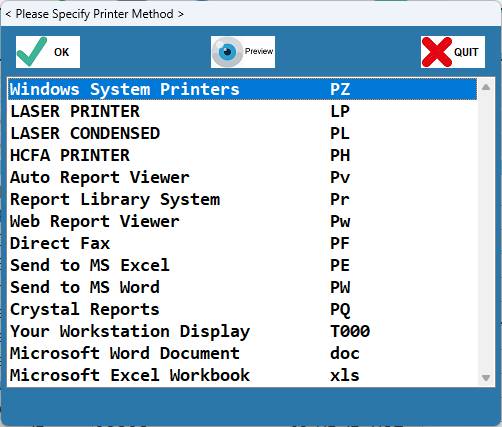
Type
in the number of your selection at the flashing cursor
and press <ENTER KEY>.
You may also use the <Up>/<Down> Arrow
keys to highlight your selection and then press <ENTER
KEY>.
(F)orward: To go forward one code (numerically or
alphabetically),
type F and press <ENTER KEY>.
(B)ack: To go back one code (numerically or
alphabetically),
type and press
<ENTER KEY>.
(K)opy: To make a copy of this information (be sure
you O (zero)
and <ENTER KEY> to save it before you copy) and assign
it a different
carrier code, type K and press <ENTER KEY>. The cursor will move to
the ENTER CODE prompt.
Enter the in-house code of the carrier you
wish this information copied to and press <ENTER
KEY>.
(D)elete: If you want to delete this carrier code from
the
Search only, enter a D and press <ENTER KEY>. Do not delete an
insurance code that has been assigned a patient. If you are
a super user
use the [R]emove command “R” to
remove an insurance company from the
master file
completely. Warning: An existing claim assigned to this code
will re-assign to another carrier after removing.
(V)erify: Type V to verify the original entry date
and/or
the date this screen was last updated.
(N)ext: If there are
more screens for the carrier you are
working with, the (N) function will open a window in
the
middle of your screen and display them. You may make
your selection.
Esc=END: To save your entry and
exit to the ENTER CODE prompt
type 0 (zero) and press <ENTER KEY>. You may enter more codes
or type O (zero) and press <ENTER KEY> again to go to
the
Dictionary Menu.
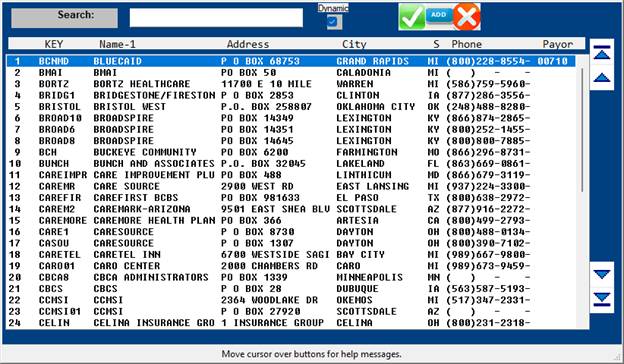
Search: To search for a CARRIER,
at the ENTER CODE prompt,
type a few letters of the carrier's name and press
<Tab>.
A
window will open up in the middle of the screen listing the
carriers beginning with the letters that you entered. You
may use the <Up>/<Down> Arrow keys to highlight
your selection
and press <ENTER KEY>.
You may also type the number that is to
the far left of your selection and press <ENTER
KEY>.
Below
is an example screen of a carrier search.
We
have entered BLU.
EXAMPLE
SCREEN
 To exit the screen,
type 0 (zero) and <ENTER KEY> or Escape.
To exit the screen,
type 0 (zero) and <ENTER KEY> or Escape.