After you type TIMERPT.GUI at the Command Line of the Main Menu and
press <ENTER>, the following prompts will appear.
START DATE: __/__/____
Enter the date with which you wish the report to begin. If
you press <ENTER>, the system will automatically insert the
first day of the current week ( Sunday ). The next prompt will be:
STOP DATE: __/__/__ (<ENTER> = last day of current week)
Enter the date with which you wish the report to end. If you
press <ENTER>, the system will automatically insert the last
day of the current week.
If you <ENTER> through the date fields, the system assumes
that you are printing a weekly report, starting on Sunday
and ending on the last day of week (Saturday).
After you enter the STOP DATE, the system will prompt:
SELECT ID # ____ (<ENTER> for all)
To view the report for a specific user, type in their correct
ID Code and press <ENTER>. This is a function each user can
perform to make sure their hours are correct. If one wishes
to see a report for all users, as for payroll purposes, just
press <ENTER>.
After you have entered an ID Code or pressed <ENTER> for all,
the system will display the following screen:
EXAMPLE SCREEN:
Available Output Destination Listing:
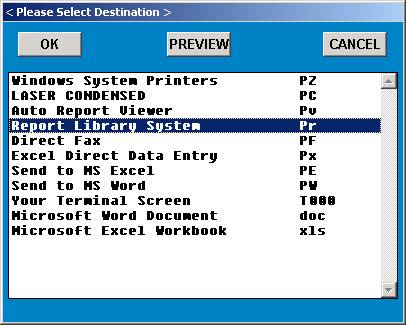
Select the appropriate output device and press <ENTER>.
When printing of the report has been completed, the system
will ask:
REPRINT THIS REPORT? Y/N:
If you type Y for Yes, the system will again ask you to select
an output device.
If you type N for NO, the system will EXIT the program and
ENTER you to the Main Menu.
T I M E C L O C K R E P O R T E X A M P L E
08/01/95 TIMECLOCK REPORT FOR PERIOD: 080195 - 080595 PAGE:0001
=========================================================================
TIMES: ACTUAL:
ID DATE NOTES IN OUT IN OUT HOURS
=========================================================================
08/01/05 DAY 1 PAY PERIOD 0800 1200 0800 1200 04hrs 00min
08/01/05 BACK FROM LUNCH 1300 1700 1300 1710 04hrs 00min
08/02/05 TUESDAY 0800 1700 1700 1700 08hrs 00min
08/03/05 WEDNESDAY:HALF DAY 0800 1300 0745 1400 05hrs 00min
08/04/05 THURSDAY 0800 1205 0800 1205 04hrs 05min
08/04/05 1300 1700 1300 1700 04hrs 00min
08/05/05 TGIF! 0800 1130 0800 1130 03hrs 30min
08/05/05 1230 ---- 1230 1230 ****NOT OUT
TOTAL TIME FOR OMNI 32hrs 35min
Notice in the above example that because user did not punch-out
on 8/05/05, the report is not counting the hours worked on that day
in the total time for OMNI.
CORRECTING THE TIME: The system will allow you to edit TIMES
section of the report, but not the ACTUAL section which is the system time.
Example situation:
The User forgot to punch in until an hour after arriving.
The User moves the hands of the time clock back to 08:00 hours and punches in. The actual time is 09:00. ( The System Time from the Server )
The TIMES column in the Time Clock Report will display 09:00, however the actual column will display 08:00. ( The System Time ).
The User may also type a note in the “NOTE” field on the time clock screen explaining the situation.