SINGLE DIAGNOSIS LIST
OVERVIEW: This selection allows you to print a statistical report by diagnosis.
You have the ability to run the report for multiple jobs, and to run
the report by either Date of Entry or Date of Service.
PROCEDURE: Select Option 5 from the Defined Report Menu and <Enter Key>. The
screen below will be displayed.
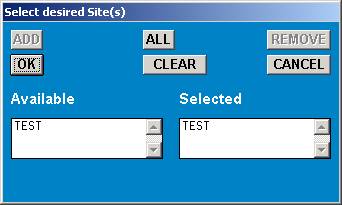
Enter individual jobs to process or type an asterisk for all jobs and <Enter Key>. The screen
will update allowing you to select the method by which the report is to be run.
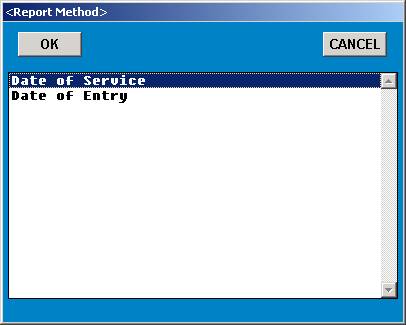
Select how you want the report to run by typing the line number at the cursor or use the
<Up>/<Down> arrow keys to highlight the line and press <Enter Key>. The screen will
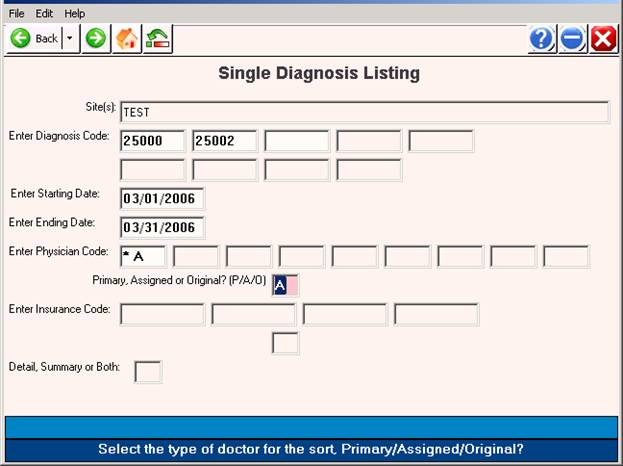
update with program prompts. Example screen below.
Type 0 (zero) and <Enter Key> at any prompt to exit program.
<Up> arrow to previous prompt to re-enter information.
DEFINITION OF PROMPTS
ENTER DIAGNOSIS CODE: Enter up to nine specific diagnosis codes or <Enter Key> for all.
STARTING DATE: The default date (first day of the current month) will be displayed at this
prompt. You may type over this date with a different one.
ENDING DATE: The default date (the present day of the current month) will be displayed at
this prompt. You may type over this date with a different one.
PHYSICIAN LIST TO PROCESS: Enter up to nine specific doctors or <Enter Key> for all.
PRIMARY, ASSIGNED, OR ORIGINAL (P/A/O): Select the physician sort method. The default
is Assigned physician.
Primary = Physician listed on Patient Information screen.
Assigned = Physician listed on the claim.
(P)rovider on Encounter / Resident or (PA)?
The default is Provider on Encounter.
Original = Physician listed on the ledger.
INSURANCE LIST TO PROCESS: Enter up to four specific carriers or <Enter Key> for all. The default
is Assigned carrier.
Primary = Carrier listed on Patient Information screen.
Assigned = Carrier listed on the claim.
Original = Carrier listed on the ledger.
If you enter a specific carrier, you will be prompted as to whether or not you want to use the GROUP_TO table for insurances.
D)ETAIL, S)UMMARY, OR B)OTH: Select the type of report you want to print. The default is Detail.
D)ETAIL = Lists all claim lines.
S)UMMARY = Lists each procedure & total times performed.
B)OTH = Lists Detail and Summary.
*(If Summary or Both, choose if diagnosis name/description
should also print.)
DO YOU VERIFY THE ABOVE? The default is yes. If the entries are correct, press <Enter Key> for the
default. If not, type N at this prompt. You will return to the ENTER JOBS FOR PROCESSING prompt.
SELECT OUTPUT DEVICE: Select the appropriate output device and <Enter Key>. If you select an LP printer, you will be prompted for condensed print.
Example reports:
04/02/2006 9.0i SINGLE DIAGNOSIS LIST - Date of Service PAGE 1
FOR PERIOD: 01/01/2006 - 04/02/2006
FOR JOB(S): TEST
FOR CODE(S): 25000 25002
FOR PHYSICIANS: (Assigned) * ALL *
FOR COMPANIES: (Assigned) * ALL *
----------------------------------------------------------------------------------------------------------------------------------
## CODE PATIENT NAME ACCOUNT # DOS DLB QTY EXPECTED ADJUSTED PAID BALANCE INSURANCE
----------------------------------------------------------------------------------------------------------------------------------
1 25002 TEST, PATIENT TEST 000010 03/20/06 03/20/06 1 75.00+ 0.00+ 0.00+ 75.00+ BCN
----------------------------------------------------------------------------------------------------------------------------------
TOTALS: 1 1 75.00+ 0.00+ 0.00+ 75.00+
SINGLE PROCEDURE LIST
OVERVIEW: This selection allows you to print a report for multiple jobs and to run
the report by either Date of Entry or Date of Service. This report may
be for single, multiple and all procedures performed.
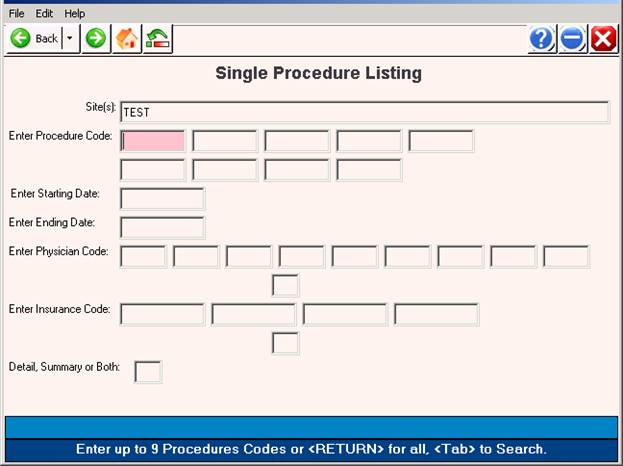
PROCEDURE: Select Option 6 from the Defined Report Menu and <Enter Key>. The
screen below will display.
Enter individual jobs to process or type an asterisk for all jobs and <Enter Key>. The screen
will update allowing you to select the method by which the report is to be run.
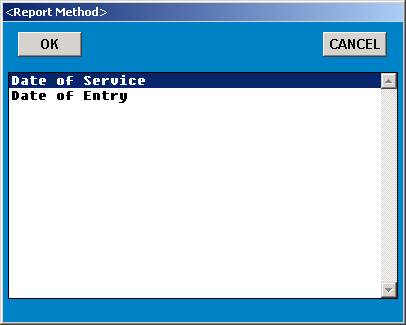
Select how you want the report to run by typing the line number at the cursor or use the
<Up>/<Down> arrow keys to highlight the line and press <Enter Key>. The screen will
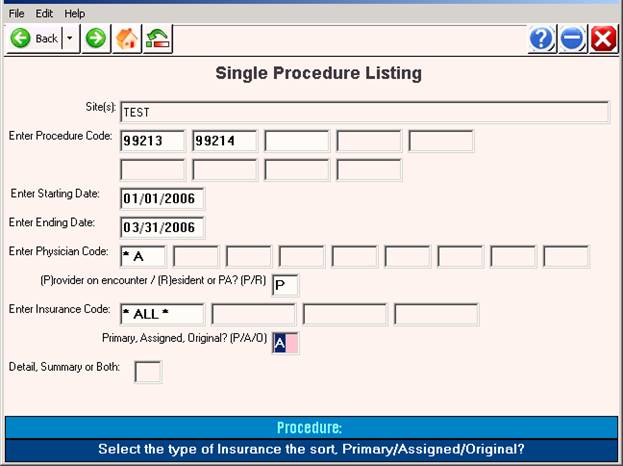
update with program prompts. Example below.
Type 0 (zero) and <Enter Key> at any prompt to exit program.
<Up> arrow to previous prompt to re-enter information.
DEFINITION OF PROMPTS
ENTER PROCEDURE CODE: Enter up to nine specific procedure codes or <Enter Key> for all.
STARTING DATE: The default date (first day of the current month) will be displayed at this
prompt. You may type over this date with a different one.
ENDING DATE: The default date (the present day of the current month) will be displayed at
this prompt. You may type over this date with a different one.
PHYSICIAN LIST TO PROCESS: Enter up to nine specific doctors or <Enter Key> for all.
PRIMARY, ASSIGNED, OR ORIGINAL (P/A/O): Select the physician sort method. The default
is Assigned physician.
Primary = Physician listed on Patient Information screen.
Assigned = Physician listed on the claim.
(P)rovider on Encounter / Resident or (PA)?
The default is Provider on Encounter.
Original = Physician listed on the ledger.
INSURANCE LIST TO PROCESS: Enter up to four specific carriers or <Enter Key> for all. The default
is Assigned carrier.
Primary = Carrier listed on Patient Information screen.
Assigned = Carrier listed on the claim.
Original = Carrier listed on the ledger.
If you enter a specific carrier, you will be prompted as to whether or not you want to use the GROUP_TO table for insurances.
D)ETAIL, S)UMMARY, OR B)OTH: Select the type of report you want to print. The default is Detail.
D)ETAIL = Lists all claim lines.
S)UMMARY = Lists each procedure & total times performed.
B)OTH = Lists Detail and Summary.
*(If Summary or Both, choose if procedure name/description
should also print.)
DO YOU VERIFY THE ABOVE? The default is yes. If the entries are correct, press <Enter Key>. If not, type N at this prompt. You will return to the ENTER JOBS FOR PROCESSING prompt.
SELECT OUTPUT DEVICE: Select the appropriate output device and <Enter Key>. If you select an LP printer, you will be prompted for condensed print.
Example reports are on next page.
04/02/2006 9.0i SINGLE PROCEDURE LIST - Date of Service PAGE 1
FOR PERIOD: 01/01/2006 - 03/31/2006
FOR JOB(S): TEST
FOR CODE(S): 99213 99214
FOR PHYSICIANS: (Assigned) * ALL *
FOR COMPANIES: (Assigned) * ALL *
----------------------------------------------------------------------------------------------------------------------------------
## CODE PATIENT NAME ACCOUNT # DOS DLB QTY EXPECTED ADJUSTED PAID BALANCE INSURANCE
----------------------------------------------------------------------------------------------------------------------------------
1 99214 TEST, PATIENT TEST 000010 03/20/06 03/20/06 1 75.00+ 0.00+ 0.00+ 75.00+ BCN
----------------------------------------------------------------------------------------------------------------------------------
TOTALS:
BATCH PROCEDURE LETTER
OVERVIEW: This program allows you to send letters to patients that are being
recalled to have the same procedure performed.
PROCEDURE: Select Option 7 from the Defined Report Menu and <Enter Key>. The
screen below will be displayed.
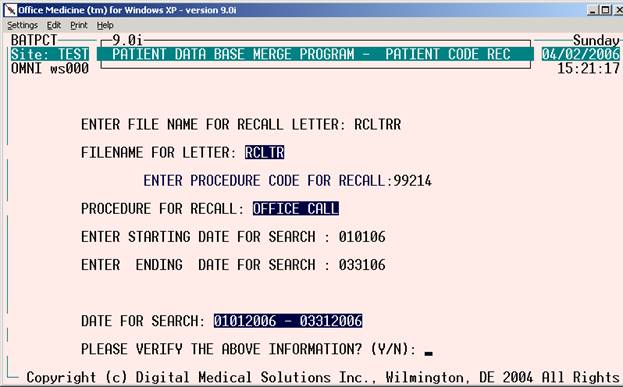
Enter individual jobs to process or type an asterisk for all jobs and <Enter Key>. Next, the other
prompts will be displayed one by one. Prompts are defined on the following page.
DEFINITION OF PROMPTS
ENTER FILE NAME FOR RECALL LETTER: Type the name of the letter (name you saved it as in your word processor) and <Enter Key>.
FILENAME FOR LETTER: The name you typed at the above prompt is echoed to this prompt.
ENTER PROCEDURE CODE FOR RECALL: Enter the procedure code you will be using for
this recall letter.
VERIFY PROCEDURE FOR RECALL Y/N? The definition of the procedure code you entered will display. To verify type Y. The next prompt will display. An N response places the cursor at the ENTER PROCEDURE FOR RECALL prompt allowing you to enter a different procedure code.
PROCEDURE FOR RECALL: Displays the definition of the procedure code you entered.
ENTER STARTING DATE FOR SEARCH: Using the MMDDYY format, enter the date with which the system should begin the search.
ENTER ENDING DATE FOR SEARCH: Using the MMDDYY format, enter the date with which the system should begin the search.
DATE FOR SEARCH: The date range you entered displays at this prompt.
PLEASE VERIFY THE ABOVE INFORMATION? (Y/N):
N = Returns you to the ENTER JOBS FOR PROCESSING prompt.
Y = Opens a window allowing you to select an output device.
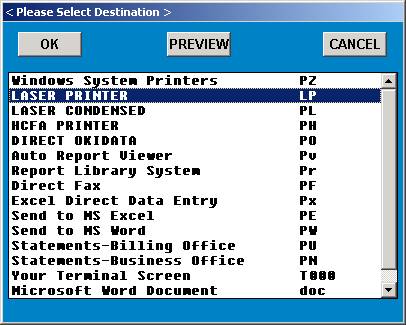
Select the appropriate output device and <Enter Key>. Printing will begin. When printing is completed, the following prompt is displayed.
WOULD YOU LIKE TO RUN AGAIN? Y/N
Y = Will print the report a second time.
N = Returns you to the Defined Report Menu.
DOUBLE SORTED REPORT - ( TRIPLE SORTED REPORT)
OVERVIEW: This selection allows you to create your own report format and gives
you the option to do primary and secondary sorting.
PROCEDURE: Select Option 8 from the Defined Report Menu and <Enter Key>. The
screens below will be displayed, Primary Sort first.
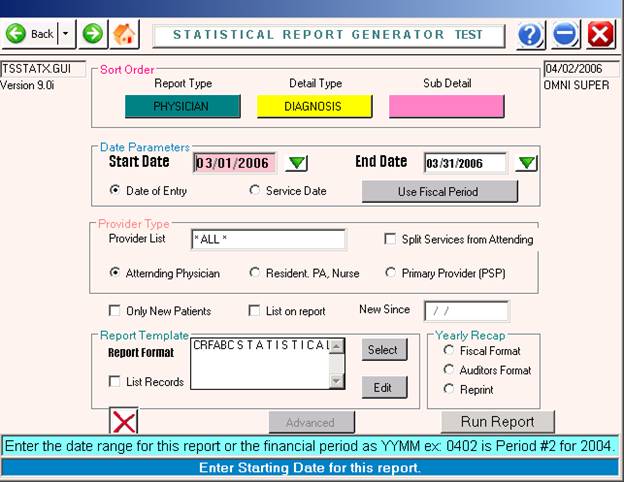
PRIMARY SORT TYPE: First, enter the primary sort type. Use the <Up>/<Down> arrow keys to highlight your selection or type the line number at the cursor and <Enter Key>.
SECONDARY SORT TYPE: Next, enter the secondary sort type. Again, use the <Up>/<Down> arrow keys to highlight your selection or type the line number at the cursor and <Enter Key>.
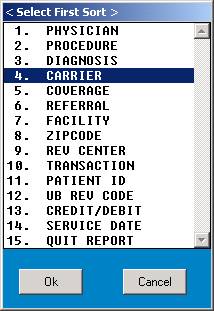
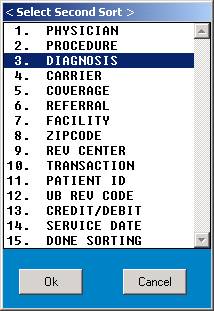
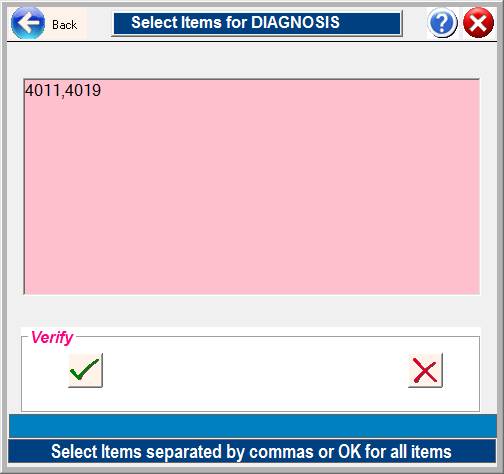
If the sorting buttons are clicked – There is an option to filter certain items if needed.
Example: If only certain diagnosis codes are needed on the report, enter the list of codes separated by commas when prompted as per below. This prompt will appear only after clicking on the sort item.
 PROVIDER FILETER – IF REQUIRED
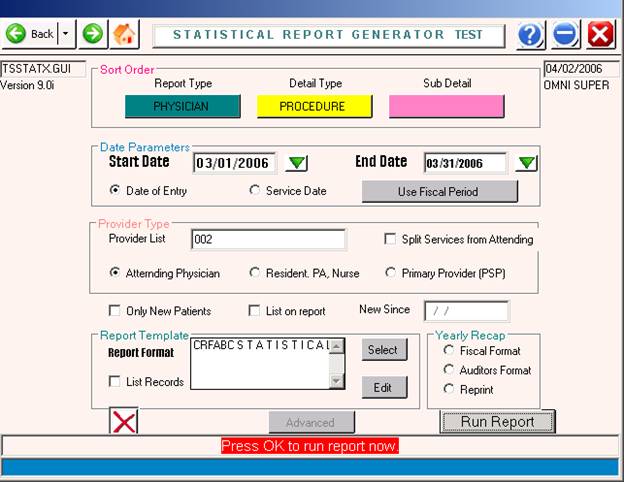

SPLIT SERVICES FROM ATTENDING DR? Do you want the services rendered by Resident or P.A. subtracted from the attending doctor.
After you answer the above prompts, the system will open a window prompting you to enter the jobs for processing.
Enter an individual job(s) to process or Click “ALL” for all jobs. Next, you will set the parameters for sorting. The prompts display one by one. Prompts are defined on the next page.
Click on Select Reporting Format to Select the column definition File:

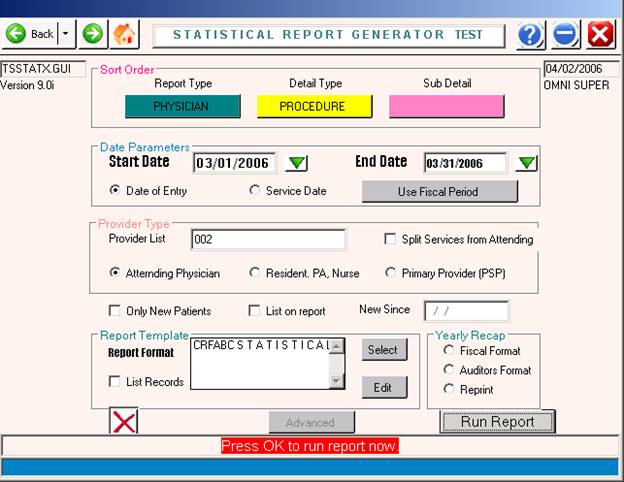
Selecting Report Columns format: CRFABC – Simple Columns
CRFPC – Statistical Analysis
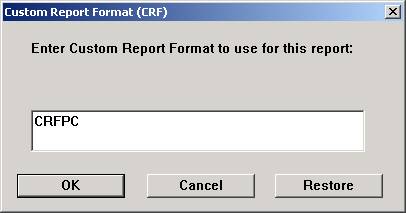
EDIT of Report Format:
Click on EDIT button from within format box in order to modify or create a new report – See column definitions below under “CREATE NEW REPORT”
DEFINITION OF PROMPTS
USE SERVICE DATE OR ENTRY DATE? (S/E): Enter either an S or E and <Enter Key>.
S = Sorting will be by date of service.
E = Sorting will be by date of entry.
Note:
Selecting “DATE OF ENTRY” will balance to the monthly financial report, but
this method (in order to balance incoming payments) will include procedures
“PAID ON” that occurred on previous dates of service, but were PAID on the
dates above. Therefore, you may have a procedure with a “0” quantity or
number of visits may be difficult to determine, if only a payment was
received on this procedure. In order to better see true PRODUCTION figures, use
“DATE OF SERVICE”.
STARTING DATE (Escape = END PROGRAM): Use the MMDDYYYY format to enter the date with which the report should start. To return to the first prompt, type 0 (zero) and <Enter Key> or <Escape>.
(Note: If you <Enter Key> through the date prompts, the system assumes you are printing a monthly report,
starting with the first day of the current month and ending with the last day of that month.)
ENDING DATE: Use the MMDDYYYY format to enter the date with which the report should end.
PROVIDER LIST TO PROCESS: You may <Enter Key> to list all providers, or you may enter the codes of specific providers.
PRINT YEARLY RECAP? (Y/N/A): If you are running a fiscal period, this prompt will display. If a yearly recap is not printed, you may not get the report with accurate totals in later months.
Y = Yearly Format N = Nothing A = Auditors Format
NEW PATIENTS OR ALL? (N/A): If you want this report run for all patients on the system, enter A.
If you want the report for only new patients enter N, and then type the date the system should go forward
from at the AS OF --/--/---- prompt. The system will include only those new patients from that date forward.
REPORT FORMAT NAME: Enter the document name you will be using or press <Enter Key> to have the system use the default document of CRFABC. At this prompt you may <Tab> to search for CRF
files on the system.
LIST DETAIL? (Y/N): We recommend you type N at this prompt to avoid printing pages of unnecessary detail. If you type Y at this prompt, all data found to generate the report (that is every line item that goes into making up the report) will print.
PLEASE VERIFY THE ABOVE INFORMATION? (Y/N):
N = Returns you to the USE SERVICE DATE OR ENTRY DATE prompt. You may
start over.
Y = Opens a window allowing you to select an output device.
CUSTOMIZED REPORTS
Your Office Medicine system comes with the default format CRFABC loaded in the Medical System Directory of your Word Processor system. By editing this format, you can create a customized report. It is recommended that you copy the default format and then edit it. The default format should be left intact.
You can also create an entirely new report in your word processor by inserting mergeable codes found under the Report Format Options Table.
EDIT A COPY OF THE DEFAULT FORMAT (CRFABC):
Make a copy of the document CRFABC (default document) and name it beginning with CRF+ any 3 alpha characters except ABC. You may make and rename as many copies of CRFABC as you wish. The document names must all begin with CRF and end with any 3 alpha characters except ABC. By making a copy of CRFABC, the original will remain in the file unchanged.
Edit text within the copied document to suit your needs using the mergeable codes found under the Report Format Options Table and the Header Information table. These codes determine which values will merge in the columns and what information will display in the Header.
CREATE A NEW REPORT:
Using your word processor to design this new report, type the mergeable code(s) where you want the information to display. Mergeable codes are found under the Report Format Options Table. For header information, use the codes listed under the Header Information table. Name the document keeping in mind that document name must begin with CRF and end with any 3 alpha characters except ABC.
 CUSTOM MONTHLY REPORT FORMAT
OPTIONS TABLE 07/09/2005
[01] ITEM CODE BEING REPORTED FROM SECONDARY SORT CHOICE
(Example: PROCEDURE, DIAGNOSIS, CARRIER)
[02] INTERNAL NAME/DESCRIPTION OF SECONDARY SORT ([01] ABOVE)
(The translation of the code, if present in a Dictionary, will print under the NAME column.)
[03] THE TOTAL QUANTITY FOR ITEM IN [01] ABOVE
(This is a count of the number of codes named in [01].)
[04] THE TOTAL # OF UNIQUE PATIENTS PER [01] ABOVE
(This is the unique body count of patients assigned to the code in [01]. Do not add this column,
as one unique patient may receive several codes.)
[05] TOTAL CHARGES/BILLED AMOUNTS FROM ENCOUNTER
(This represents the current gross charge as found in the procedure profile as price #1. A higher
override charge would be used instead of the profile amount.)
[06] AVERAGE CHARGE BASED ON BILLED AMOUNT/QUANTITY
Calculated as: GROSS CHARGE FOR ALL OF A CERTAIN CODE
NUMBER OF THOSE CODES
[07] TOTAL PATIENT EXPECTED AMOUNT
(Total dollars expected to be paid by patient for this procedure this month. This amount appears
on the patient’s statement. This amount could include private pay, amounts not covered by
insurance deductible, copays, and discounts.)
[08] TOTAL INSURANCE EXPECTED AMOUNT
(This is the portion of the charges that the insurance company is expected to pay after billing
the charge amount.)
[09] PERCENT OF TOTAL PATIENT EXPECTED AMOUNT
(The percentage of all expected patient dollars this month that will be received from this
procedure.)
Calculated as: EXPECTED PATIENT AMOUNT FOR THIS CODE ONLY x 100
TOTAL EXPECTED PATIENT AMOUNT FOR REPORT RANGE
or
The percentage of patient expected amount per this specific
item against the total patient expected for entire report.
[10] PERCENT OF TOTAL INSURANCE EXPECTED AMOUNTS
(The percentage of all insurance dollars for this month that will be obtained from this procedure.)
Calculated as: EXPECTED INSURANCE AMOUNT FOR THIS CODE ONLY x 100
TOTAL EXPECTED INSURANCE AMOUNT FOR REPORT RANGE
[11] UTILIZATION PERCENT (ALSO SHOWN AS FREQ %)
Calculated as: TOTAL NUMBER OF SPECIFIC ITEMS x 100
TOTAL NUMBER OF PATIENT VISITS
or
The percentage of this procedure performed on a given
unique patient.
[12] PRODUCTION PERCENT (ALSO SHOWN AS % PROC)
Calculated as: TOTAL GROSS CHARGES FOR THE REPORT RANGE x 100
THE TOTAL GROSS FOR THIS CODE
or
The percentage of the entire gross for all procedures represented
against the gross for this particular code for the given report range.
[13] NUMBER OF VISITS (ENCOUNTERS)
(The number of patient visits during which this procedure was performed this month. Also, do
not add this column for the same reason as [04]. Usually, each entry session means the patient
left and returned for another visit.)
[14] TOTAL DOLLAR AMOUNT OF ALL PATIENT PAYMENTS
[15] NUMBER OF CASES PAID
[16] TOTAL DOLLAR AMOUNT OF ALL PAYMENTS (PATIENT AND INSURANCE)
[17] TOTAL DOLLAR AMOUNT OF ALL PATIENT AND INSURANCE ADJUSTMENTS
[18] TOTAL DOLLAR AMOUNT OF ALL PATIENT ADJUSTMENTS
[19] TOTAL DOLLAR INSURANCE AND PATIENT EXPECTED AMOUNTS
[20] BALANCE OF LINE ITEM
[21] CARRIER CODE
[22] RESERVED FOR FUTURE USE
[23] RESERVED FOR FUTURE USE
[24] NUMBER OF UNIQUE ESTABLISHED PATIENTS
[25] NUMBER OF UNIQUE NEW PATIENTS
[26] TOTAL INSURANCE ADJUSTMENTS (CONTRACTUAL ALLOWANCE)
[27] CONTRACTUAL TOTAL CHARGES (ORIGINAL)
[28] RESERVED
[29] AVAILABLE APPOINTMENT SLOTS FOR DATE RANGE SELECTED
[30] APPOINTMENT PERCENT OF SCHEDULE LOAD (0-100%)
FOR THE PROGRAM INSTATX: [28] FEE FOR SERVICE EQUIVALENT
[29] CAPITATED PAYMENTS
[30] WEIGHT AVERAGED CAPITATION
 COLUMN
MATHEMATICS AND FORMULAS:
COLUMN
MATHEMATICS AND FORMULAS:
[13] + [25] Addition
[05] - [07] Subtraction
[11] * [16] Multiplication
[05] / [16] Division
[05] @ [05] Average
[17] /@ [05] Division w/Average
 CUSTOM MONTHLY REPORT FORMAT
MERGEABLE HEADER INFORMATION
01/05/2005
[DATE] PRINTS DATE REPORT WAS PRINTED MM/DD/YY
[TIME] PRINTS TIME THE REPORT WAS PRINTED IN HH:MM:SS
[PAGE] PRINTS CONSECUTIVE PAGE NUMBERS OF REPORT
[JOB] PRINTS THE JOB CODE
[JOBD] PRINTS THE NAME FROM THE JOB CODE
[FILE] PRINTS THE “CRF” DOCUMENT YOU USED
[KEY] PRINTS THE PRIMARY SORT OPTION SUB-HEADING
[SORT] PRINTS THE PRIMARY AND SECONDARY SORT CHOICES
[TYPE] PRINTS *ALL* FOR ALL PATIENTS
*ALL* AS OF MM/DD/YY
*NEW* AS OF MM/DD/YY
[DOE] PRINTS THE STARTING/ENDING DATES ENTERED FOR THE REPORT
REGARDLESS IF YOU ARE SORTING BY DATE OF SERVICE OR DATE OF
ENTRY.
RECORD YOUR CRF NAMES BELOW
CRF NAME DESCRIPTION OF REPORT
Example Format
[DATE] [PAGE]
YOUR CLINIC NAME
FORMAT: [SORT]
PERIOD: [DOE]
FOR [KEY] [TYPE]
CODE DESCRIPTION QTY # UNIQ BILLED $ EXPECTED $ PAID PAYMENTS ADJUSTED
PATIENTS AMOUNT AMOUNT AMOUNT RECEIVED AMOUNT
BILLED
[01] [02] [03] [04] [05] [19] [16] [15] [17]
Example Printed Report
08/28/97 PAGE: 01
VERY BEST CLINIC
FORMAT: CA01: PHYSICIAN PROCEDURE
PERIOD: 07011997 - 07011997
FOR ALL PHYSICIANS *ALL*
CODE DESCRIPTION QTY # UNIQ BILLED $ EXPECTED $ PAID PAYMENTS ADJUSTED
PATIENTS AMOUNT AMOUNT AMOUNT RECEIVED AMOUNT
BILLED
71020 XRAY CHEST 4 4 240.00 240.00 -8.95 5 .00
71100 XRAY RIB UNI 1 1 50.00 50.00 .00 0 .00
81000 UA COMPLETE 11 6 110.00 110.00 -10.00 5 .00
81002 URINALYSIS 1 1 5.00 5.00 -5.00 3 .00
82947 URINE GLUCOSE 4 4 40.00 40.00 .00 3 .00
93000 EKG INTERPT/RPT 2 2 90.00 90.00 .00 1 .00
99211 PT EXAM MIN 2 2 36.00 36.00 .00 0 .00
99213 PT EXAM INTERMED 11 8 418.00 414.20 -144.25 7 .00
99214 PT EXAM EXTENDED 2 2 96.00 96.00 .00 0 .00
99215 PT EXAM COMPREHE 2 2 130.00 130.00 .00 0 .00
99243 CONSUL OFFICE/OP 1 1 100.00 100.00 .00 0 .00
99251 HOSP CONS BRIEF 1 1 75.00 72.00 .00 0 .00
99253 CONSUL F/UP INPT 1 1 100.00 84.75 .00 0 .00
xxxxx DUMMY 1 1 5000.00 5000.00 .00 0 .00
TOTAL ALL PHYSICIANS 44 36 6490.00 6467.95 168.20 24 .00
Y-T-D TOTALS 00 00 .00 .00 .00 00 .00
LAST YEAR Y-T-D 00 00 .00 .00 .00 00 .00