Waiting
List Guide
To
add a patient to the wait list:
Fill out the Move-Up fields when adding a new appointment or by editing an existing appointment.
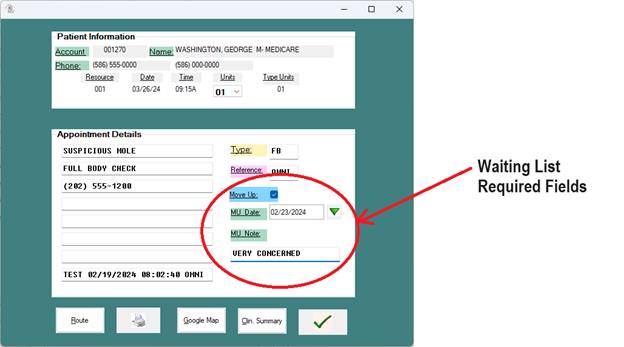
Please note: Take care to enter a proper date in the Move Up Date Field when adding a move-up date to an existing appointment.
To
View the waiting list from the scheduler:
1. Click
on the open (blank) appointment slot
where you would like to add a patient from the waiting list.
2. Click
the green checkmark on the lower toolbar.
3. Patients
waiting for this date and provider will popup.
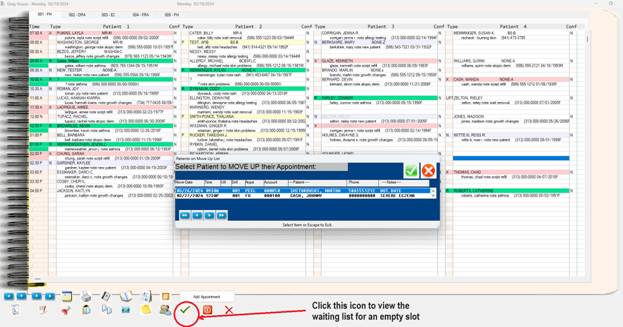
4. Select
a Patient from the waiting list to move the future appointment to the selected empty
slot.
5. A
prompt for a confirmation will appear:
6. 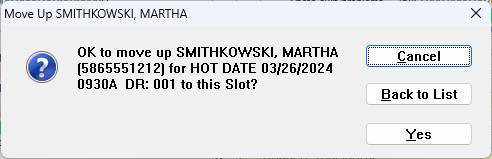
Process is completed.
Automatic
Waiting List Prompts
A prompt to view the waiting list will
occur when:
1. An
appointment is moved to another date.
2. An
appointment is deleted from the main scheduler screen.
Additional
Features for ADMIN and SUPER users.
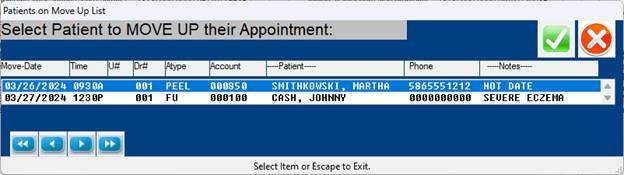
If a Patient is not selected from the
Waiting List above or No patients are listed for this Provider/Date this prompt
with appear for ADMIN and SUPER users:
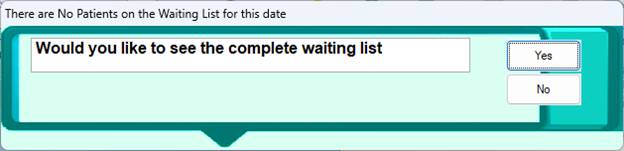
A yes response will bring the full
waiting list into view. – See below
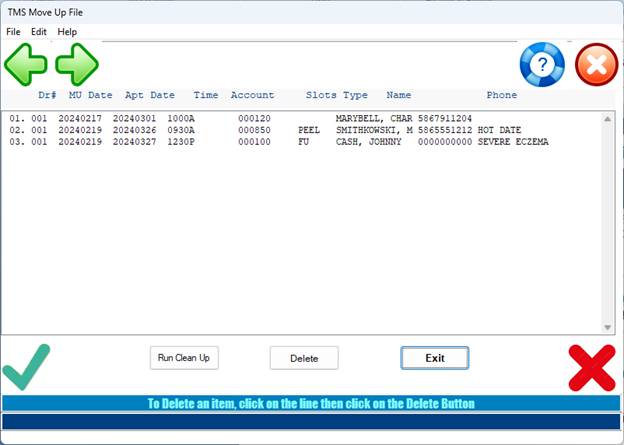
Selecting a Patient from the full list
will also move the appointment to the selected empty slot.