Quick Reference - Transmitting Medicare Railroad to Palmetto GBA.
The Medicare Railroad program, as installed, should automatically go through the steps of dialing, transferring claims and starting “ftp” for retrieving responses if a modem is present.
Note:
If the modem was not powered on when the computer was last booted up – the modem will not function properly. If you are unable to hear the modem dial – shutdown the computer, turn the modem off/on and boot the system with the modem powered ON.
For information about the response files – see Retrieving Reponses section below.
The EDI can also be performed by manually executing each step as outline below. But this is not necessary unless the automatic process is not available.
- Note – In order to receive the ERA files without sending any claims first – please see receiving responses and ERA files stating on page 5.
- Double Click in the Medicare Railroad Remote Networking Icon.
This dial up connection must be called “DIALMEDICARE” – See instructions at the end of this document.

- The phone number to the GPNet system (803) 788-4215 will be dialed automatically.
Note: login: pgbaops password: opspw1
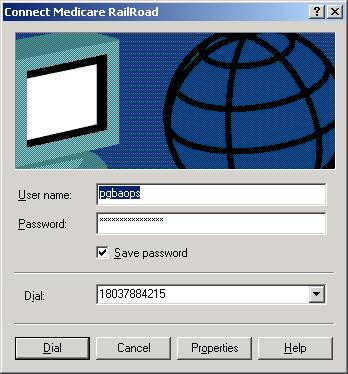
- The login pgbaops and password opspw1 will be entered automatically.
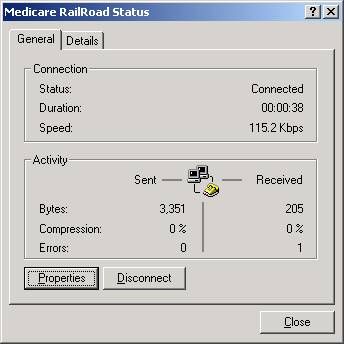
- The Networking connection will be established by the presence of a networking icon in the lower right corner of the task bar.
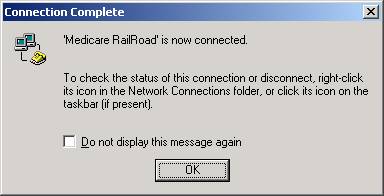
- Now double click the “Transmit Medicare Rail Road ICON
Note:
If this icon is not present, right click on the desktop and select “new” shortcut.
Browse and select “c:\om\bin\FTPMRRR.scr
Now in the general program enter ftp.exe -sC:\om8\bin\FTPMRRR.scr
Name this icon “Transmit Medicare”
Click “OK” and close.
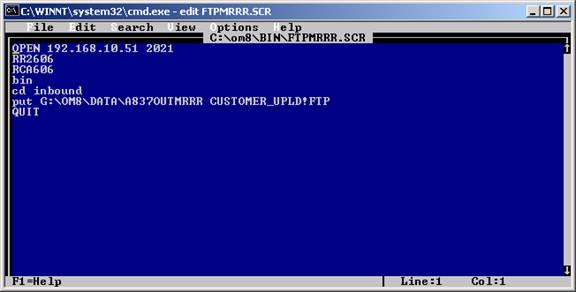
You will see a window open and execute the following commands:
These commands will transmit the railroad claims to the GPNet system.
Once this command has finished, you have now uploaded the claims to Medicare.
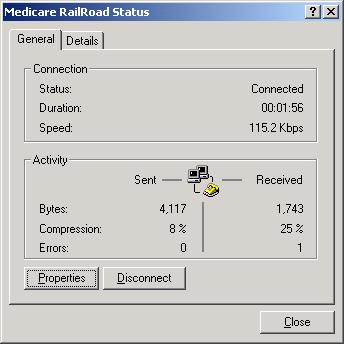
Now disconnect from the Medicare Railroad System by double clicking the
Medicare Network Connection icon in the lower right corner on the task bar.
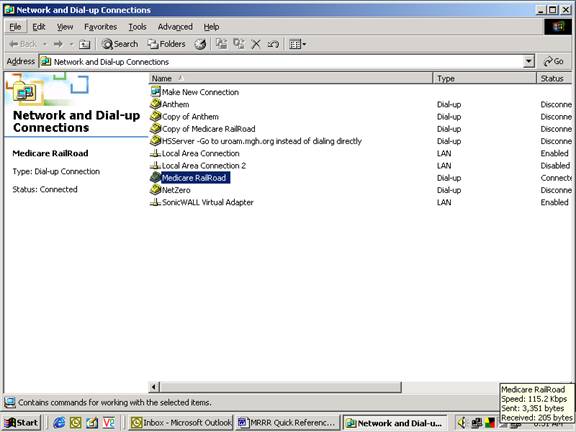
Click on the disconnect button.
Receiving Response Files or ERA files from Medicare RR
Responses are available 1-2 minutes after transmitting the claims.
This program runs automatically after sending claims
- Double Click in the Medicare Railroad Remote Networking Icon.
This process will dial in to the Palmetto GPNet system and connect your computer to the Medicare Railroad network. This is the same process and the same icon used to connect when transmitting claims manually above.
(If you just connected and sent claims, you can elect to not disconnect and wait for 5-10 minutes after transmission of the claims, you can ignore this step since the network is still connected from the transmission step.) If you disconnected from the transmission step, then you must not skip this step.
- To receive the response files, double click the “Receive Medicare RailRoad Icon”
This step will bring up the FTP program ( File Transfer ).
(The example below is labeled “Transmit” – This was an error – The label should be “Receive”)

Example Screen: FTP Program ( File
Transfer – not logged in yet ) 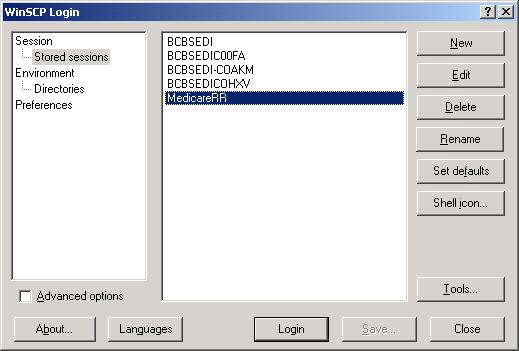
On the main window select MedicareRR and click the “LOGIN” button for response files or MEDICARE-RR-ERA login for receiving Remittance Advice Files.
This step will log on to the specific Medicare Railroad response system.
GPNet also supports Tricare and many other payers.
This step allows access to the files for Medicare-RR directly.
The FTP program (example below) has a left and right split screen:
The Left side of the screen is your billing system computer.
The Right side of the screen is Palmetto GBA Claims System (Medicare Railroad)
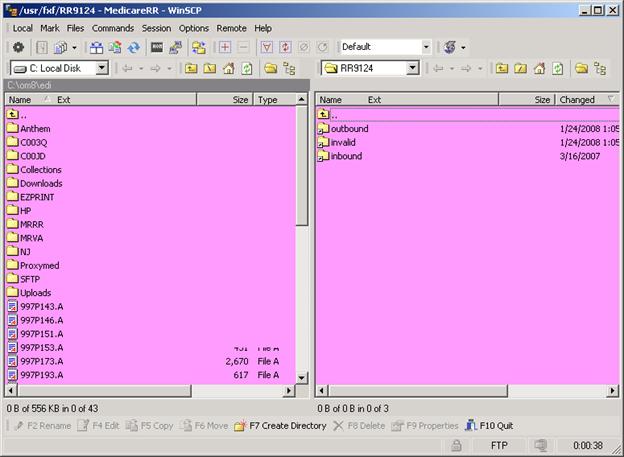
3. Double click on the OUTBOUND directory on the right side of the screen.
This step will display the contents of the reports and responses from Medicare RR.
Example Screen: Outbound Directory
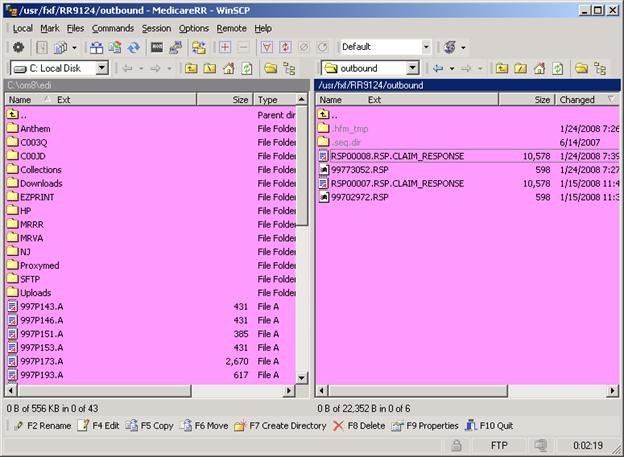
- Using the mouse, right click and “OPEN” and files labeled reponse.
These files contain the processing results and/or rejections (if any).
4. Open the files with wordpad to be viewed or printed.
Example Screen: Files have been moved from OUTBOUND (right)
to Your Computer (Left)
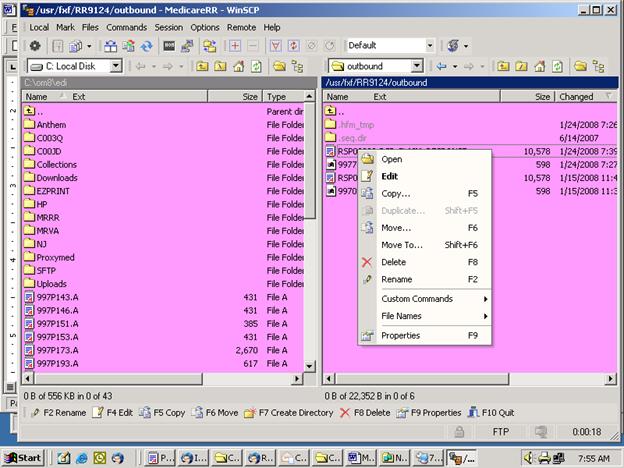
- Right click on the files on the right side of the FTP program and open with wordpad to view or print. The first time you attempt to open these files you may get a prompt asking for which program to use. Select WORDPAD. Once this is done, the files will open regularly with WordPad without the additional prompt.
- If you “COPY” the responses, the downloaded files are located in C:\om8\edi\MRRR. Double click on MyComputer, then C:LocalDisk then om8 then edi then MRRR
- The downloaded files will be in this directory. Double click the files to open with wordpad.
Example Response Report – Also see complete example report below.
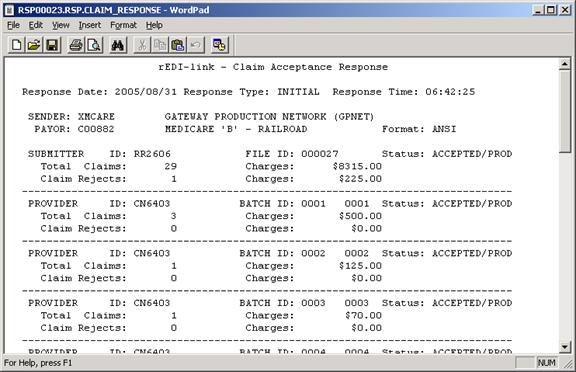
997 Files are the Batch Acceptance
RSP files are the claims processing rejections ( if any )
Please note: ERA files must be printed by using the Medicare EZ-Print program.
- Once the files have been viewed or printed, close the FTP program.
- Close the Networking Connection. ( Lower Right Corner Taskbar ) – Disconnect.
- To re-print Response files at a later time, the response files are located in C:\om8\edi\MRRR
- Double click on the response files and open with wordpad to view or print.
Example Response Report:
-----------------------------------------------------------------------------------------------------
rEDI-link - Claim Acceptance Response
Response Date: 2005/08/31 Response Type: INITIAL Response Time: 06:42:25
SENDER: XMCARE GATEWAY PRODUCTION NETWORK (GPNET)
PAYOR: C00882 MEDICARE 'B' - RAILROAD Format: ANSI
SUBMITTER ID: RR2606 FILE ID: 000027 Status: ACCEPTED/PROD
Total Claims: 29 Charges: $8315.00
Claim Rejects: 1 Charges: $225.00
-------------------------------------------------------------------------------
PROVIDER ID: CN6403 BATCH ID: 0001 0001 Status: ACCEPTED/PROD
Total Claims: 3 Charges: $500.00
Claim Rejects: 0 Charges: $0.00
-------------------------------------------------------------------------------
PROVIDER ID: CN6403 BATCH ID: 0002 0002 Status: ACCEPTED/PROD
Total Claims: 1 Charges: $125.00
Claim Rejects: 0 Charges: $0.00
-------------------------------------------------------------------------------
PROVIDER ID: CN6403 BATCH ID: 0003 0003 Status: ACCEPTED/PROD
Total Claims: 1 Charges: $70.00
Claim Rejects: 0 Charges: $0.00
-------------------------------------------------------------------------------
PROVIDER ID: CN6403 BATCH ID: 0004 0004 Status: ACCEPTED/PROD
Total Claims: 1 Charges: $125.00
Claim Rejects: 0 Charges: $0.00
-------------------------------------------------------------------------------
PROVIDER ID: CN6403 BATCH ID: 0005 0005 Status: ACCEPTED/PROD
Total Claims: 1 Charges: $55.00
Claim Rejects: 0 Charges: $0.00
-------------------------------------------------------------------------------
PROVIDER ID: CN6403 BATCH ID: 0006 0006 Status: ACCEPTED/PROD
Total Claims: 1 Charges: $75.00
Claim Rejects: 0 Charges: $0.00
-------------------------------------------------------------------------------
PROVIDER ID: CN6403 BATCH ID: 0007 0007 Status: ACCEPTED/PROD
Total Claims: 1 Charges: $75.00
Claim Rejects: 0 Charges: $0.00
-------------------------------------------------------------------------------
PROVIDER ID: 060041825 BATCH ID: 0008 0008 Status: REJECTED/PROD
Total Claims: 1 Charges: $225.00
Claim Rejects: 1 Charges: $225.00
R MSG-B01 Member of group cannot be billing prov >060041825 REF-02
-------------------------------------------------------------------------------
PROVIDER ID: CN6403 BATCH ID: 0009 0009 Status: ACCEPTED/PROD
Total Claims: 4 Charges: $5245.00
Claim Rejects: 0 Charges: $0.00
-------------------------------------------------------------------------------
PROVIDER ID: CN6403 BATCH ID: 0010 0010 Status: ACCEPTED/PROD
Total Claims: 3 Charges: $710.00
Claim Rejects: 0 Charges: $0.00
-------------------------------------------------------------------------------
PROVIDER ID: CN6403 BATCH ID: 0011 0011 Status: ACCEPTED/PROD
Total Claims: 3 Charges: $410.00
Claim Rejects: 0 Charges: $0.00
-------------------------------------------------------------------------------
PROVIDER ID: CN6403 BATCH ID: 0012 0012 Status: ACCEPTED/PROD
Total Claims: 2 Charges: $150.00
Claim Rejects: 0 Charges: $0.00
-------------------------------------------------------------------------------
PROVIDER ID: CN6403 BATCH ID: 0013 0013 Status: ACCEPTED/PROD
Total Claims: 1 Charges: $150.00
Claim Rejects: 0 Charges: $0.00
-------------------------------------------------------------------------------
PROVIDER ID: CN6403 BATCH ID: 0014 0014 Status: ACCEPTED/PROD
Total Claims: 2 Charges: $150.00
Claim Rejects: 0 Charges: $0.00
-------------------------------------------------------------------------------
PROVIDER ID: CN6403 BATCH ID: 0015 0015 Status: ACCEPTED/PROD
Total Claims: 1 Charges: $50.00
Claim Rejects: 0 Charges: $0.00
-------------------------------------------------------------------------------
PROVIDER ID: CN6403 BATCH ID: 0016 0016 Status: ACCEPTED/PROD
Total Claims: 3 Charges: $200.00
Claim Rejects: 0 Charges: $0.00
END OF REPORT
Example Information for your site:
Site: RR9565 ( UPPERCASE )
Password: RRB565
192.168.10.50 – PORT 2021
The phone number for dialup medicare-RR is (803) 788-4215
Dial Up Networking Information:
The dialup must initially created and be named as “DIALMEDICARE”
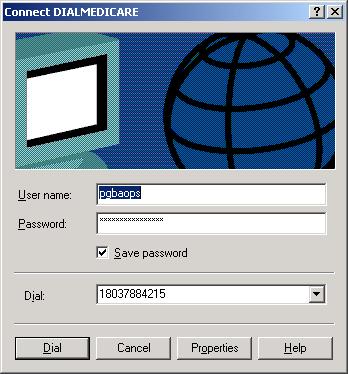
Note: login: pgbaops password: opspw1
Settings for the Carrier Library
(This Step must be done or the file will not process )
Field 9 Type: MR
Field 12 Telecom: MR
Set this field to “MR”, same as Medicare
Field 19 PayerID: 00882
Set this field to “00882”
This is the payer number for Medicare RR Palmetto.
Settings for the Billing Location
(This Step must be done or the file will not transmit )
1. From the Main Menu type “ACDTOGGLE”
2. Enter Code: LOCATIONMRRR
3. Line 1 RR12345 ( Put your billing location here)
4. Line 2 RRB345 ( Put your password here )
5. Line 3 381234567 ( Your Tax ID )
Press Escape Key 3 times to save and exit.
Service Codes for Secondary Medicare-RR
Billing secondary Medicare-RR requires placing a secondary type code
in the policy “SERVICE CODE” field.
See Examples Below:
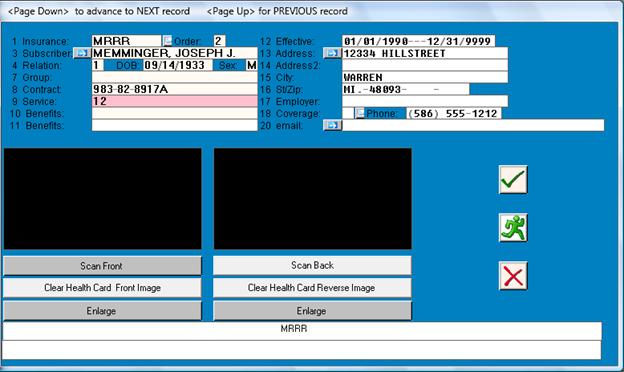
Examples of Medicare-RR secondary Insurance Type Codes:
12 Medicare Secondary Working Aged Beneficiary or Spouse with Employer Group Health Plan
13 Medicare Secondary End-Stage Renal Disease Beneficiary in the 12 month coordination period with an employer's group health plan
14 Medicare Secondary, No-fault Insurance including Auto is Primary
15 Medicare Secondary Worker's Compensation
16 Medicare Secondary Public Health Service (PHS)or Other Federal Agency
41 Medicare Secondary Black Lung
42 Medicare Secondary Veteran's Administration
43 Medicare Secondary Disabled Beneficiary Under Age 65 with Large Group Health Plan (LGHP)
47 Medicare Secondary, Other Liability Insurance is Primary
Leaving the service code blank will automatically report a type “47”
Medicare Rail Road Vendor Information
Call Palmetto GBA at 1-866-749-4301 and request a new billing location.
Vendor Name: Digital Medical Solutions Inc. Vendor ID: VR1344
Contact: Mike Brown: (888) 712-0091
Fax: (888) 961-4545
23885 Denton, Clinton TWP., MI 48036
Email: officemedicine@comcast.net Vendor ID: VR1344
Response Format: Report
Mode: FTP
Data Compression: NONE
DO NOT WANT PC-ACE
SKIP ALL PC-ACE PAGES