HL7 Laboratory Interface Guide - v2.5
Overview: HL7 laboratory results are sent via a secure protocol OPENSSH SFTP to a local folder on the server. A polling process detects the presence of the new files and merges these results to the respective patient “PLAB” ( Private Lab ) template in the EMR. Once a successful merge is accomplished, the report list is updated with the new record so that reports can be printed by date reported.
Procedure:
Select #5 from the main menu and then #21 (Laboratory Upload Menu )
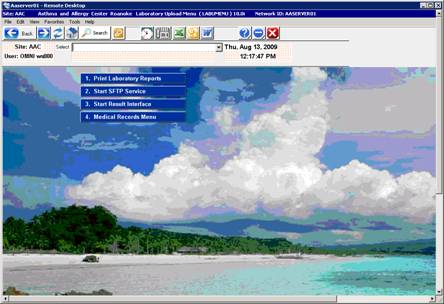
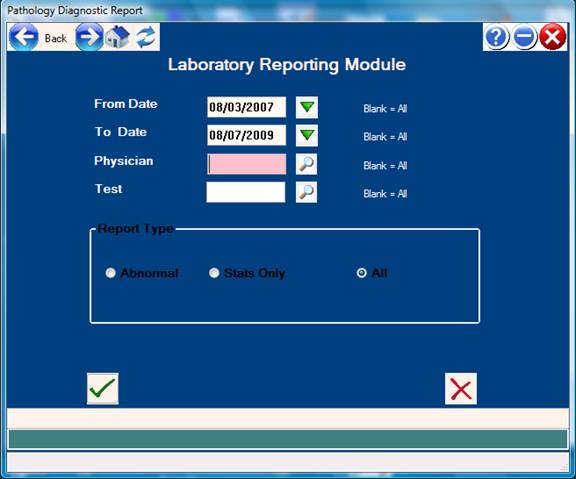
#1 Printing Reported Laboratory Results
A. Start Date: Enter the Starting Date for report to print based on date reported
B. End Date: Enter the Ending Date.
C. Physician – Leave Blank as multiple physicians can be on a single requisition.
D. TEST – Leave Blank for now.
E. Click on the Green Check Mark “OK”
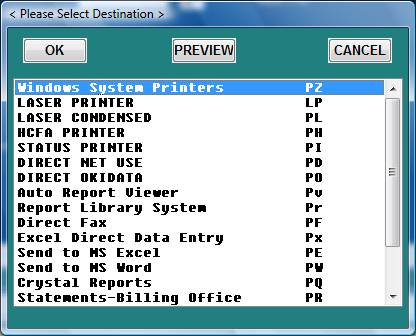
F. Select Printer:
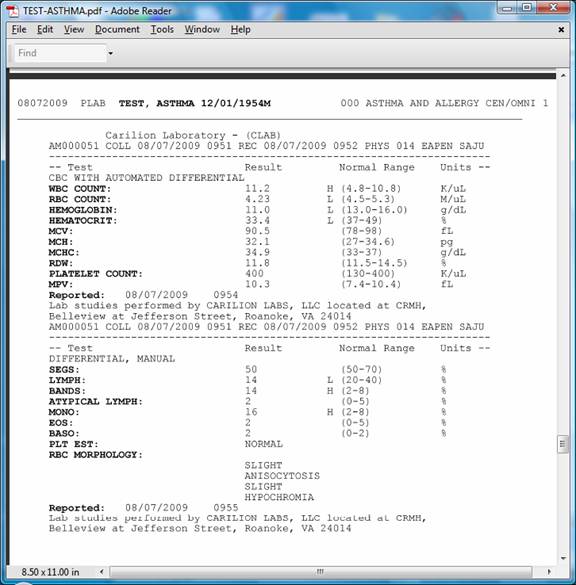
Example Report:
#2 Starting the OPENSSH SFTP Service
This process receives HL7 result files and places the results in the local server folder.
This process is started automatically when the server is booted.
Select item #2 in order to start or restart the OPENSSH SFTP server without re-booting.
This process runs in the background as a system “service”.
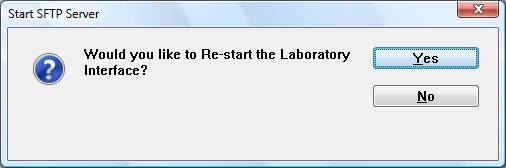
A successful start will be followed by:
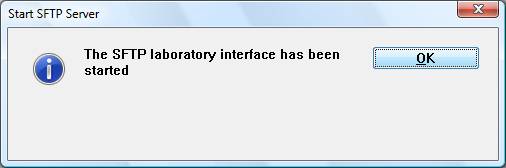
Starting the SFTP server will also start the laboratory interface (Item #3) below.
#3 Start the Laboratory Interface Process
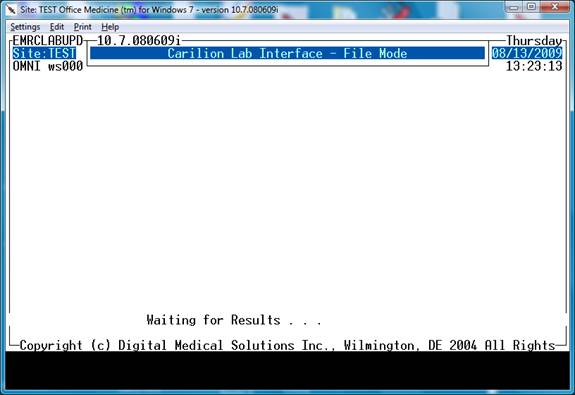
This program merges the HL7 files and places results in the PLAB section of the EMR
Based on specimen date. This process is visible when running.
Merged HL7 files are moved from the inbound HL7 folder to the “merged” HL7 folder.
Select #3 and the program will start.
Once started - leave this program running indefinitely.
Activity will be displayed as results are processed.
Trouble Shooting:
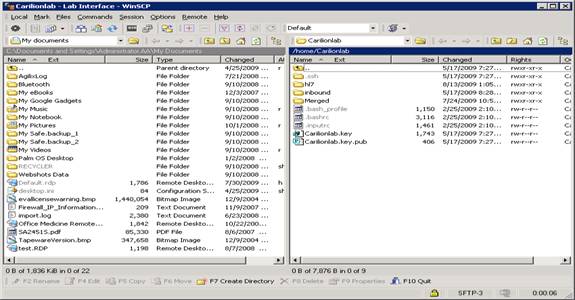
- The OPENSSH sftp server can be tested by logging on the Aaserver02 and using the “Test Lab Interface Icon” - If this process is not functional as depicted below, the SFTP server needs to be re-started.
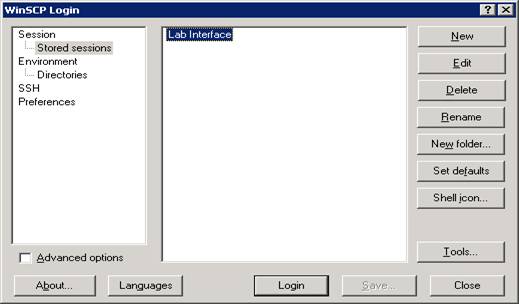
Click “LOGIN”
Successful test is pictured below:
Appendix A
Inex platform bridge: 5050