Electronic Health Record Medical Communications
Patient Portal Messages
Electronic Health Record – Medical Communications
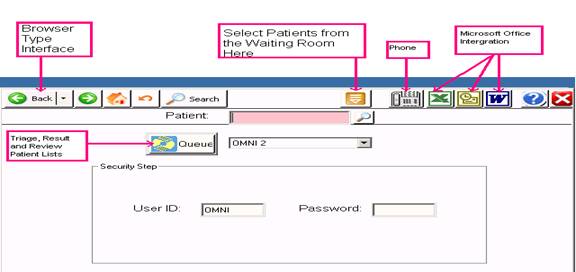
Overview: Medical communications is a triage list for phoned in
messages, messages from the Patient Portal, refills requests, abnormal values
or any actionable item organized by priority. Each item is assigned to a user
ID on the system or a non-person user ID that covers a broad category. Example:
Nurse (“NUR”) or Patient Secure Message (“PTSM”)
Note: Once a message is opened, reviewed and closed / signed off – it will disappear from the encounter list and or Queue list. Marking the Patient encounter status as “DONE” will also remove the chart from the encounter list.
Procedure:
Assigning a Triage Call to the Queue:
- Pull up patient
- Click on Triage Button ( Lower Left Toolbar )
- Fill out triage informational fields e.g. Refill Request.
- Click “Back” button ( Upper Left Toolbar ) or press Escape Key.
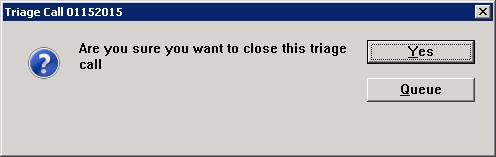
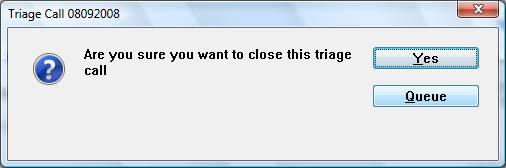
- Click “Queue” when prompted
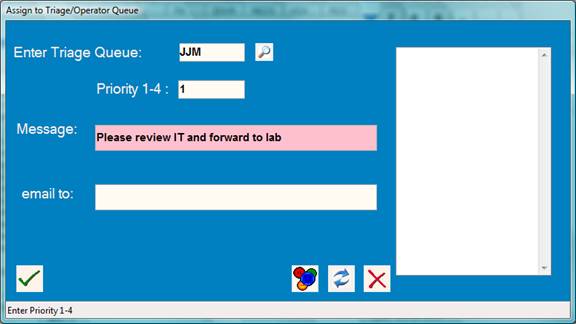
- Select Operator ID and Priority ( 1- 4) and optional message then click “OK” You may also optionally email this message. Patient protected information will be withheld from the email.
Assigning to the Queue from Patient Information
Patients can be assigned to the Physician/Nurse/PA queue from the front desk through Patient Information.
Procedure:
- Pull up patient
- Type “AQ” in the command line ( Lower Left Toolbar )
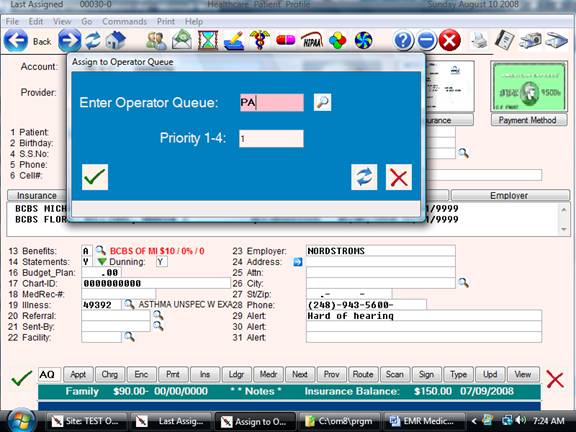
- Select ID and Priority
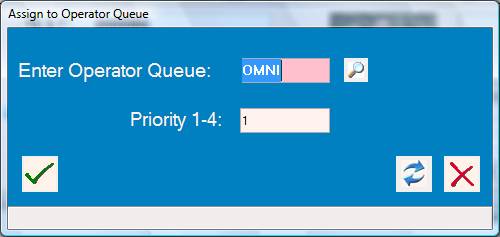
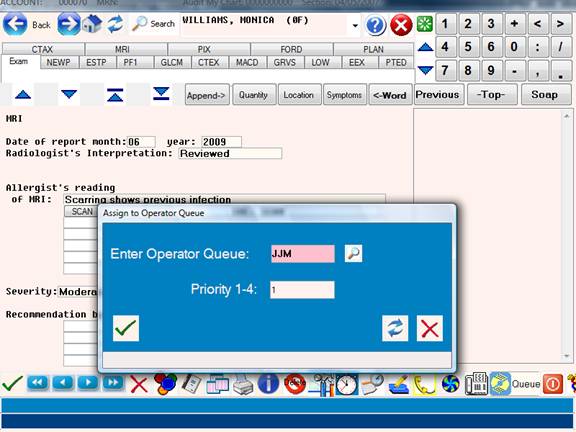
Individual record sections from the EMR and any sub-section (example: results) may also be queued by using the “Queue” button located on the lower right toolbar after bringing up the record or section of concern.
Procedure:
- Bring up the patient
- Select the date/section of interest
- Select the template or sub-section if appropriate
- Click on the QUEUE button located in the lower right toolbar
Please note: the “DONE” message is optional and may or may not appear based on configuration settings.
Reviewing Patient Portal Messages:
Patient Portal messages are stored in the queue under “PTSM” ( Patient Secure Message )
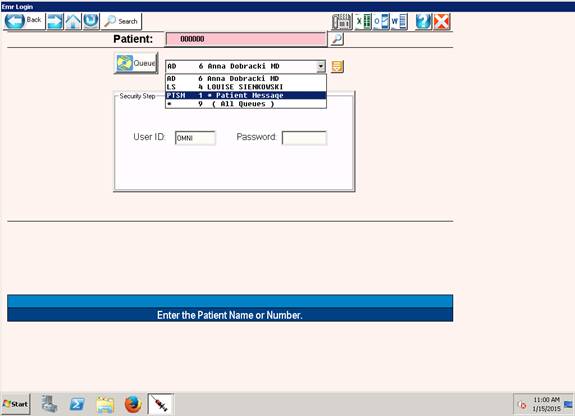
- Click on the “PTSM” button and a list of messages will come up in oldest to newest order.
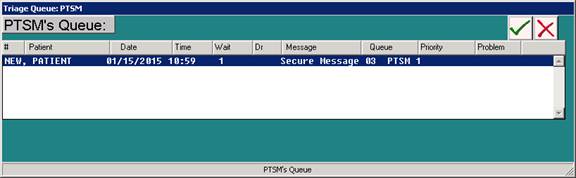
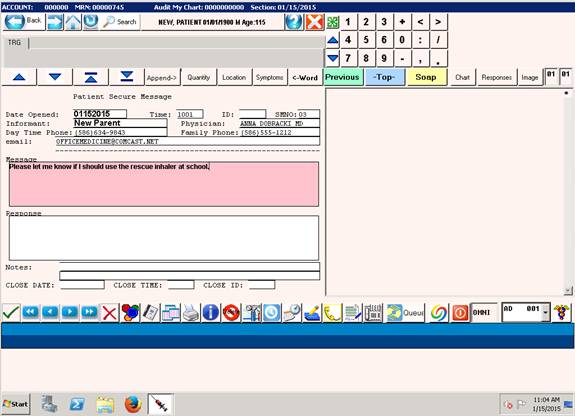
2. Select the message of interest and the message will display.
3. Document a response to the message and click the “BACK”
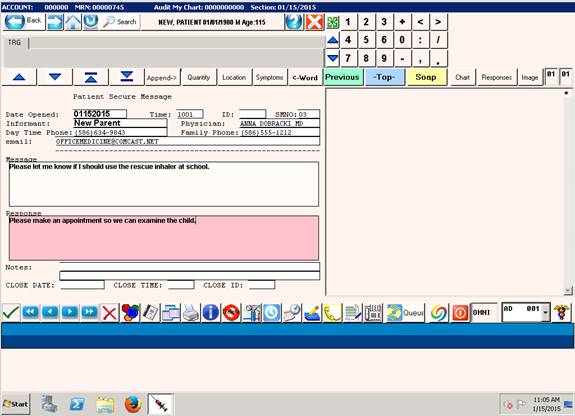
4. You will be prompted to close or Queue. Refer to step #5 above.