Draft Instructions For Office Medicine KoKo Interface
1) First make sure the KoKo program is not running. close the KoKo program if it is already running.
2) Log into Office Medicine normally and pull the patient up in Medical Records Entry.
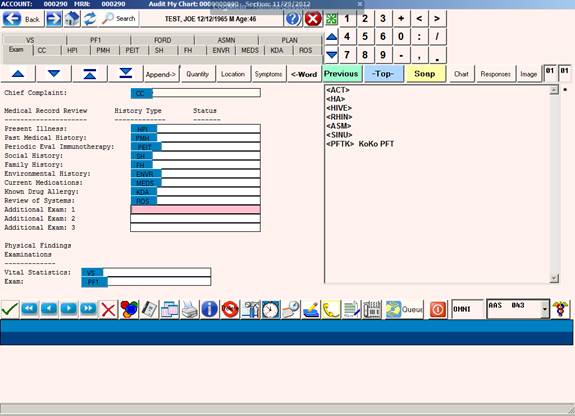
3) Click the Exam button and pull up the chart needed for the PFT or Spirometry.
4) For testing click one of the Additional Exam fields.
And click/select <PFTK> KoKo PFT in the Additional Exam field. Note, The PFTK form is only for testing. After we know that the interface is reliable we can replace the current <PFT> form with so there are not two versions of the form.
If it asks to copy the previous encounter, answer No.
Answer Yes, you are sure you do not want to copy.
5) On the PFTK form click the "<VS> Check height and weight" field to bring up the VS (Vitals) form.
6) Enter the Weight in pounds and Height in inches.
7) Enter other vitals as needed.
8) Press the Back button to return to the PFT form.
9) Click the Interface to KoKo field.
10) You should see a popup message saying the order was sent to the KoKo. Click OK.
11) The KoKo program should start up automatically.
12) In KoKo program, press the Receive test series button. It's normaly on the far left.
Or, alternatively you can click File, then Communication, then Receive test series.
13) Click Pending orders.
14) Click Show all matches.
15) Click Receive.
16) Select the desired patient.
17) Click Receive.
18) Answer “Yes” for the received patient to be the patient you are going to perform tests on.
19) Perform the tests as usual.
20) After saving click Yes to close the test.
Note - I am not sure how to perform and save the test but the KoKo manual says that should automatically sent to the EMR.
21) Close the KoKo program.
22) After KoKo closes you should see the chart.
After a few seconds the results should populate the form.
23) If you see a message saying "No results"
a) Make sure the patient ID number in KoKo matches the office medicine patient ID number.
b) Make sure the HDNET Transmitter and HDNET Receiver are running. Or they might need to be stopped and restarted.
c) Make sure the KoKo program is/was not already running before you tried to send.
d) Exit all the way out of Office Medicine and try again.
The PFTK form started out with all of the possible data elements that the KoKo can send.
If there are some fields you will never need, we can take them off of the form.
If the orders or results do not transfer please check to make sure the HDnet Transmitter and HDnet Receiver are running.
1) Click the Start button
2) Click Control Panel
3) Open Administrative Tools
4) Open Services
5) Scroll down until you see HDNET Receiver and HDNet Transmitter.
6) Right-click HDNET Receiver
7) If Start is highlighted click Start, otherwise click Restart.
8) Right-click HDNET Transmitter.
9) If Start is highlighted click Start, otherwise click Restart.
10) Close Services.
11) Close Administrative Tools.
12) Close Control Panel or All Control Panel Items.
Notes: The interface runs on the same machine that has the KoKo installation.