Attestation Guide
Modified Stage 2
Step #1: Login to the attestation system as shown on the bottom of the following screen using your PECOS login and password.
Use this link: https://ehrincentives.cms.gov/hitech/login.action
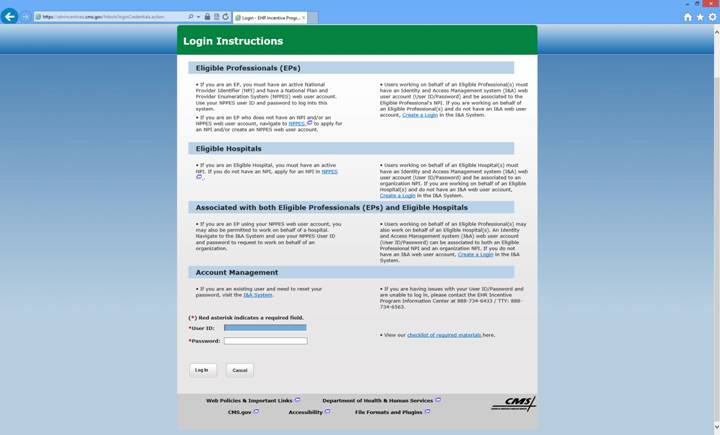
For password help call (888) 734-6433
Step #2:Click the “Attestation” tab on the top of the screen
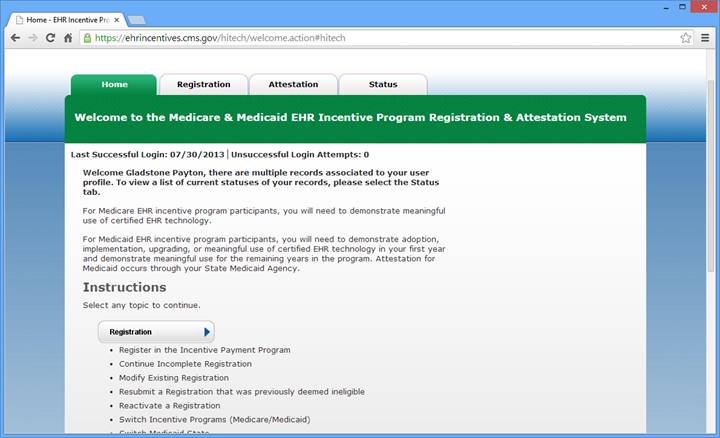
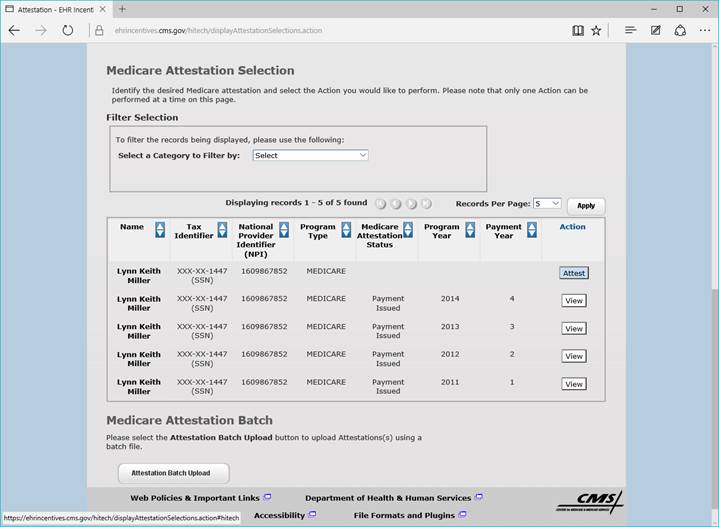
Step #3: On the right side click “Modify or Begin Attestation”
Select the program year and click “ATTEST” or if you already have started click “MODIFY”
BE CAREFUL NOT TO GO INTO THE REGISTRATION SECTION BY MISTAKE AND CLICK MODIFY. DO NOT MODIFY THE REGISTRATION!
Step #4: Click the first item “Attestation Information” and fill out the EHR certification number and the dates used for the 90 day period.
( Example 10/01/2015 – 12/31/2015 )
Please use the Office medicine EHR certification number as shown below.
1314E01PSDOQEA3 unless you are using a combination of software to achieve meaningful use.
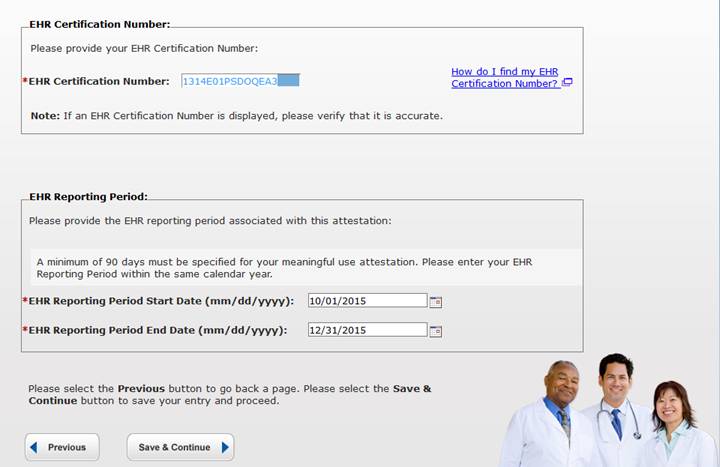
Always Click Save and Continue to proceed forward
Selecting Public Health Measures
Please select all 3 public health measures: Immunization Registry Reporting and Syndromic Surveillance Reporting and specialized Registry.
If you are not reporting to a specialized registry ( e.g. Cancer or Birth Defects ) this will be an alternate exclusion later when reporting the measure.
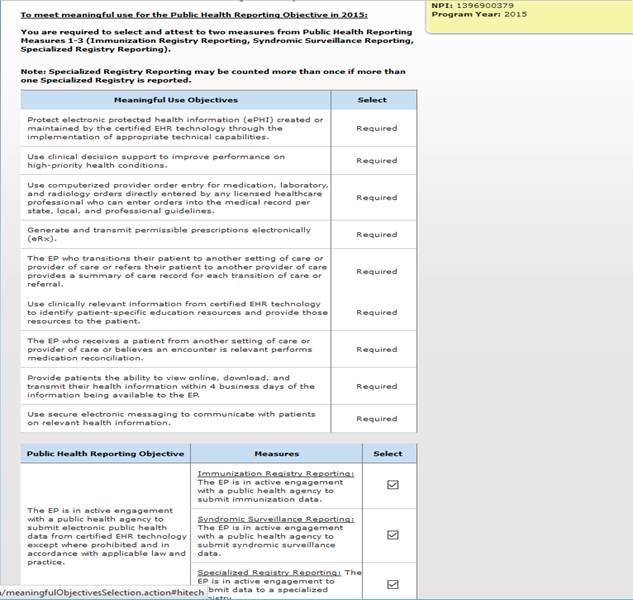
Always Click Save and Continue to proceed forward
Now we start attesting to the following:
A - All 10 Modified Core Measures
B.- 9 Additional Quality Measures – These vary by practice and specialty
Core #1: “YES” – Office Medicine has complied with requirements for protected health information, however completing the ONC stage II checklist and documenting requirements outside the software is also required.
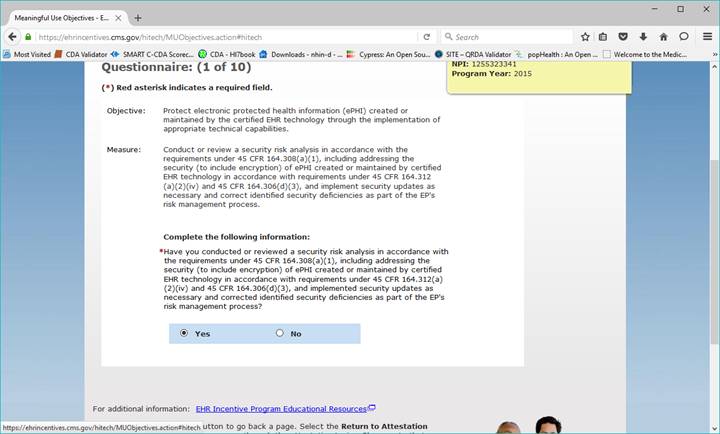
After each question click Save and Continue to proceed forward
Core #2A: “YES” – Office Medicine has incorporated these features by default.
Stage I requires 1 clinical decision rule, Stage II requires 5 rules.
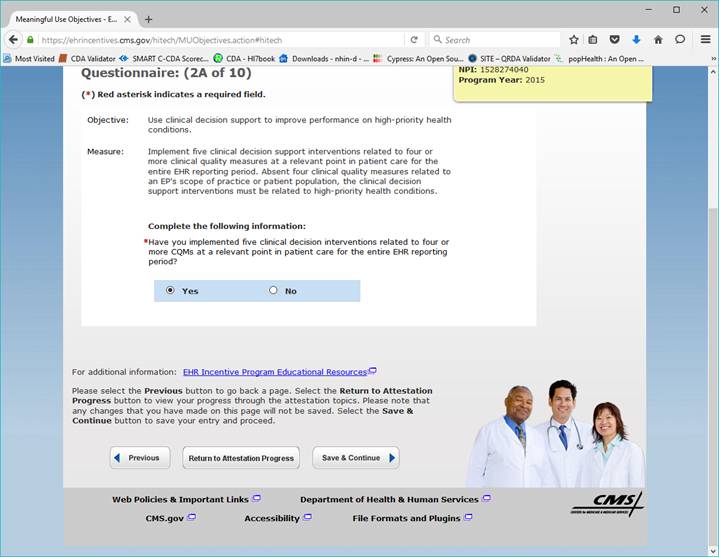
Note: If you are attesting for Stage I, please select "1" one clinical decision support rule.
Stage 2 Screen shown above
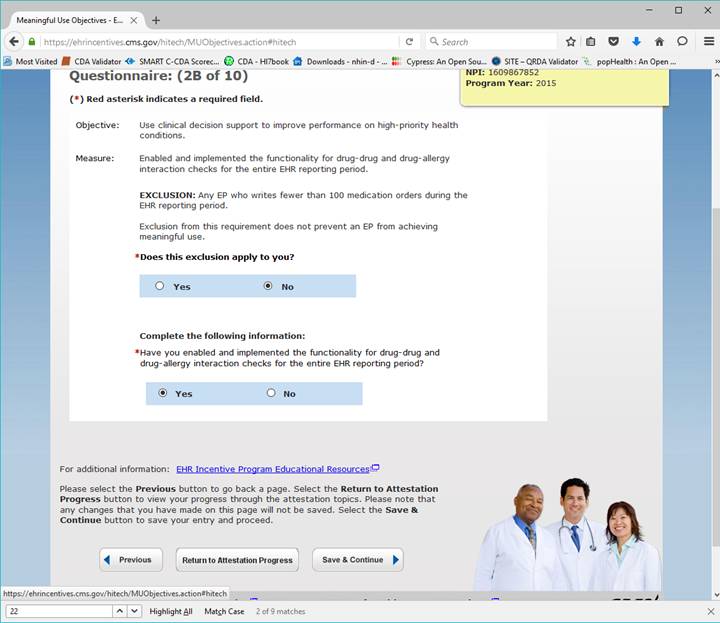
If your attestation report indicates less than 100 medication orders select "YES" for the exclusion, otherwise select "No"
The correct response for the drug interaction/allergy is shown above
After each question click Save and Continue to proceed forward
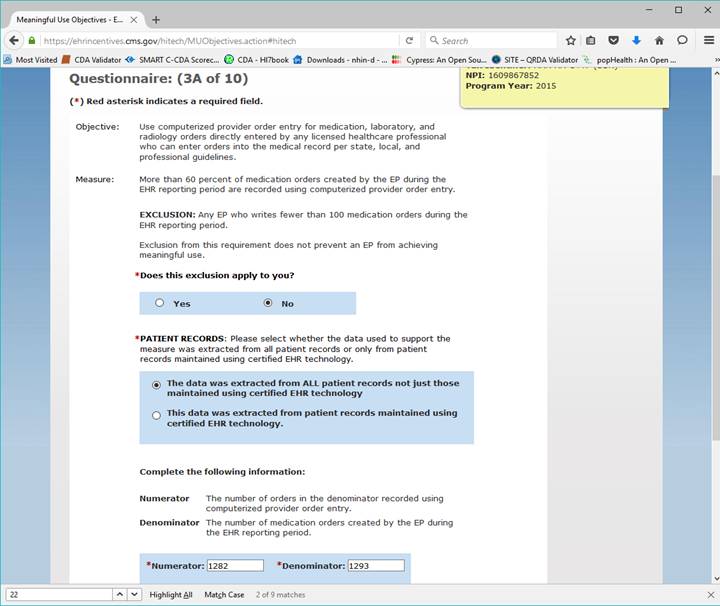
1. If there are less than 100 medication orders please select the exclusion.
Please note: If the exclusion is marked "No" the following questions will appear
2. Usually the data was extracted from ALL patient records
3. Enter numerator and denominator from the attestation report.
After each question click Save and Continue to proceed forward
If you are attesting for Stage 1 use alternate exclusion - Laboratory Orders and Radiology Orders - See below
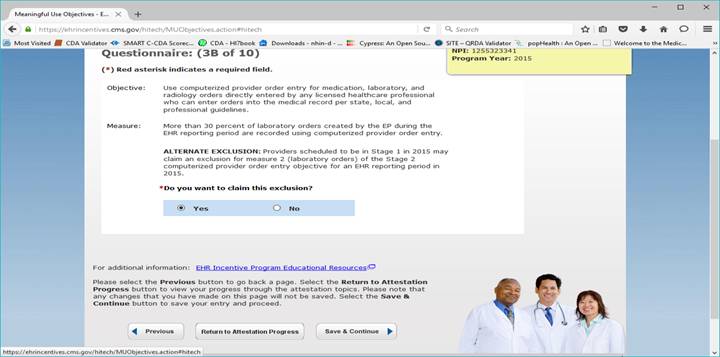
1. If there are less than 100 laboratory orders please select the exclusion.
2. Usually the data was extracted from ALL patient records
3. Enter numerator and denominator from the attestation report.
After each question click Save and Continue to proceed forward
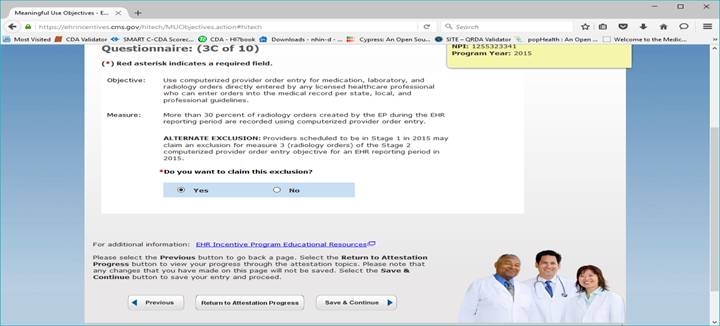
1. If there are less than 100 radiology orders please select the exclusion.
2. Usually the data was extracted from ALL patient records
3. Enter numerator and denominator from the attestation report.
After each question click Save and Continue to proceed forward
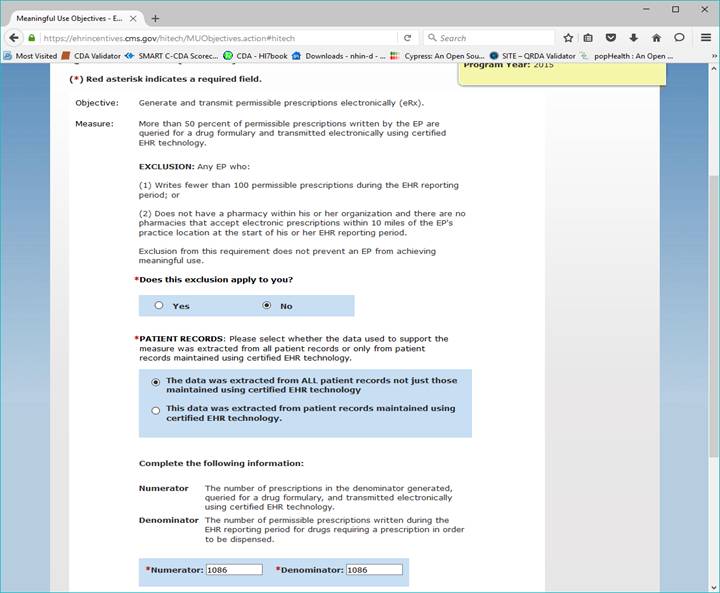
1. If there are less than 100 prescriptions please select the exclusion.
2. Usually the data was extracted from ALL patient records
3. Enter numerator and denominator from the attestation report.
After each question click Save and Continue to proceed forward
Please select exclusion if there are less than 100 transitions of care.
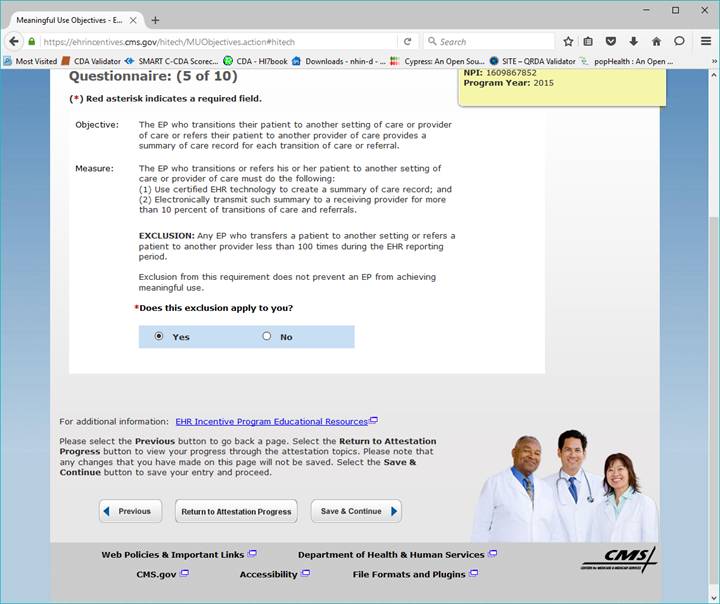
1. If there are less than 100 transitions please select the exclusion.
2. Usually the data was extracted from ALL patient records
3. Enter numerator and denominator from the attestation report.
After each question click Save and Continue to proceed forward
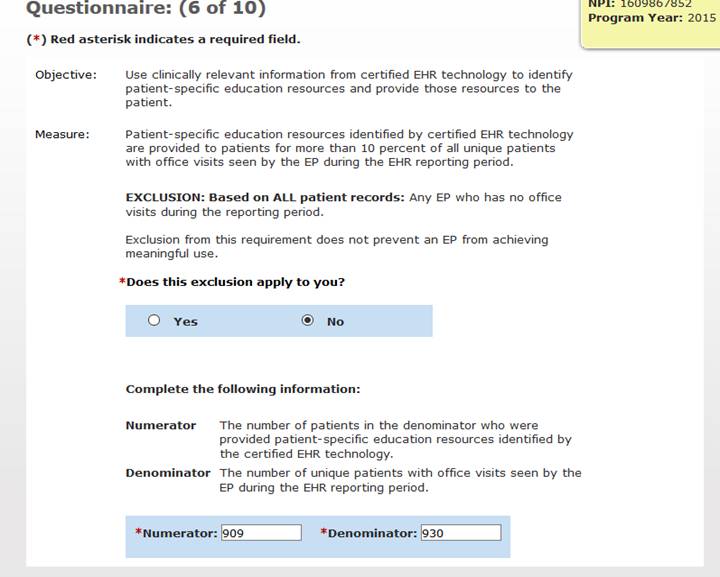
1. If there are no office visits in the reporting period please select the exclusion.
2. Enter numerator and denominator from the attestation report.
After each question click Save and Continue to proceed forward
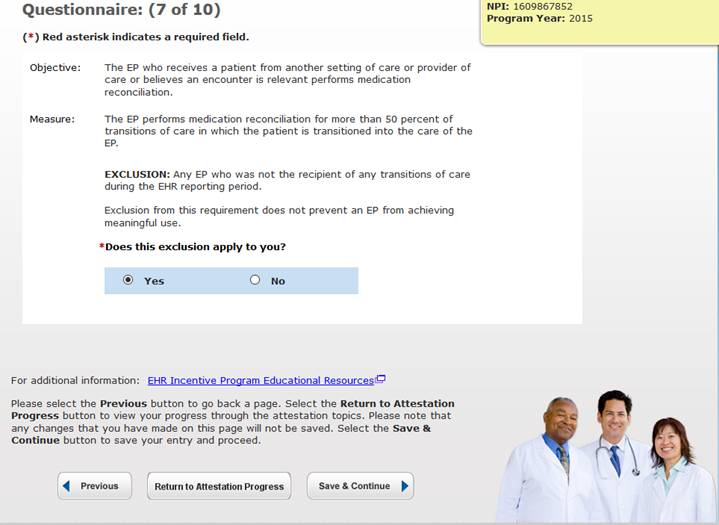
1. If no transition of care was received please select the exclusion.
2. Usually the data was extracted from ALL patient records
3. Enter numerator and denominator from the attestation report.
After each question click Save and Continue to proceed forward
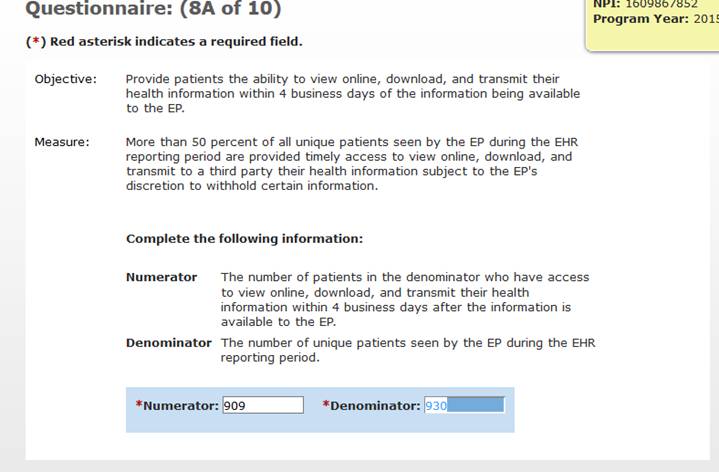
Enter numerator and denominator from the attestation report for 08A.
After each question click Save and Continue to proceed forward
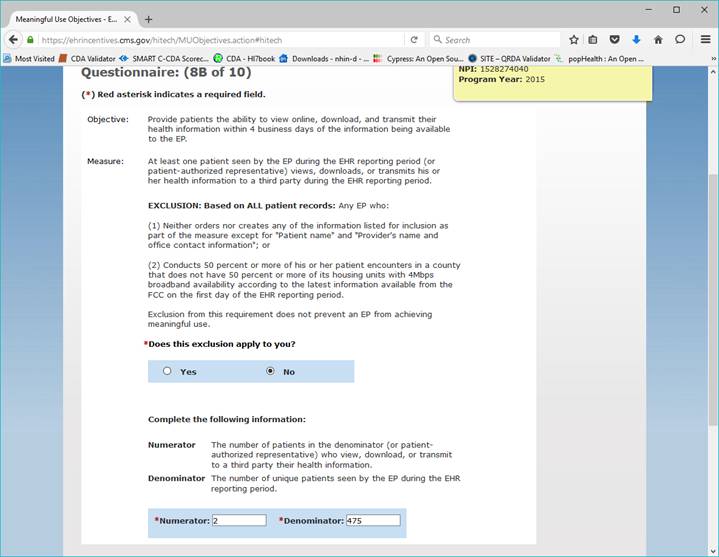
Enter numerator and denominator from the attestation report for 08B.
After each question click Save and Continue to proceed forward
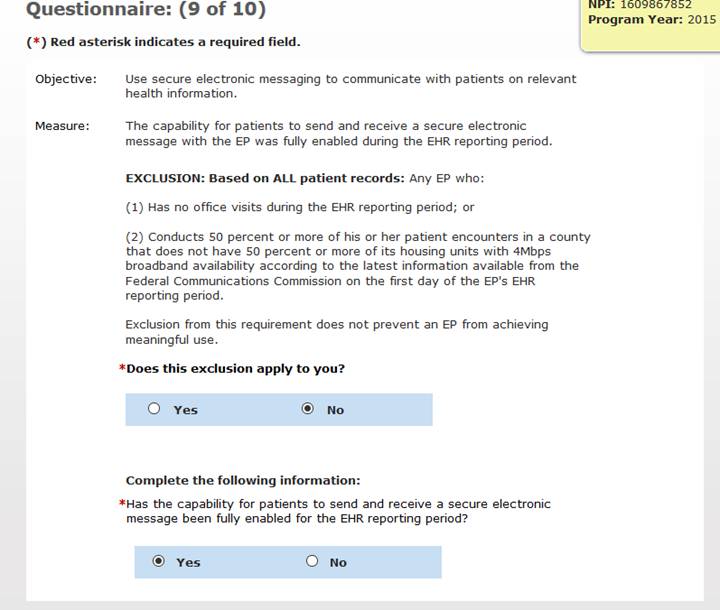
1. Usually the exclusion is "No" (99%)
Here is a link to check your county:
https://apps.fcc.gov/edocs_public/attachmatch/FCC-15-10A2.xlsx
2. Enter "Yes " if this measure indicates "Pass" on the attestation report.
Select all three public health measures during the attestation:
Public Heath Measures 1, 2 and 3. These are Measures 10A, 10B and 10C.
Measure 10A
If you are not giving immunizations select Exclusion for Measure 1 otherwise
select active engagement.
Measure 10B
Select the alternate exclusion ( The first exclusion button )
Measure 10C
Select the alternate exclusion ( The first exclusion button )
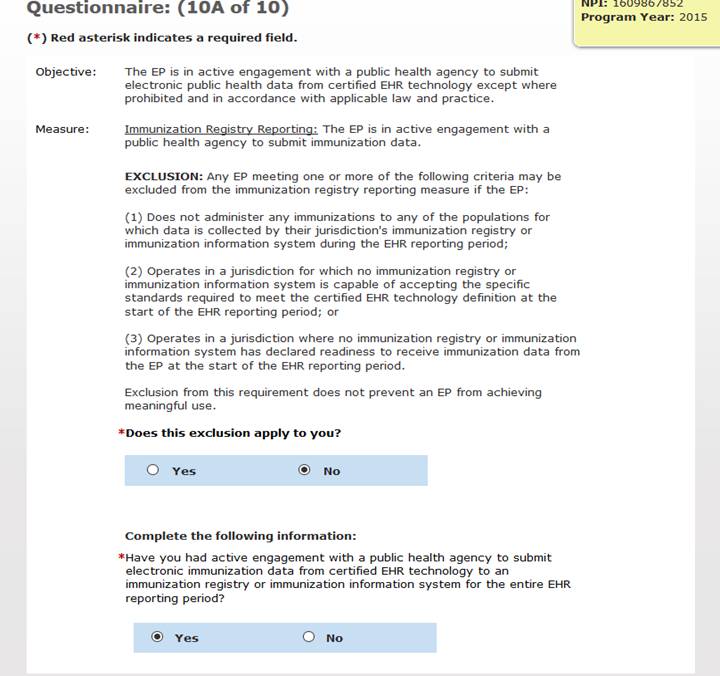
1. If the clinic does not administer any immunizations select exclusion 1
2. otherwise respond Yes to active engagement.
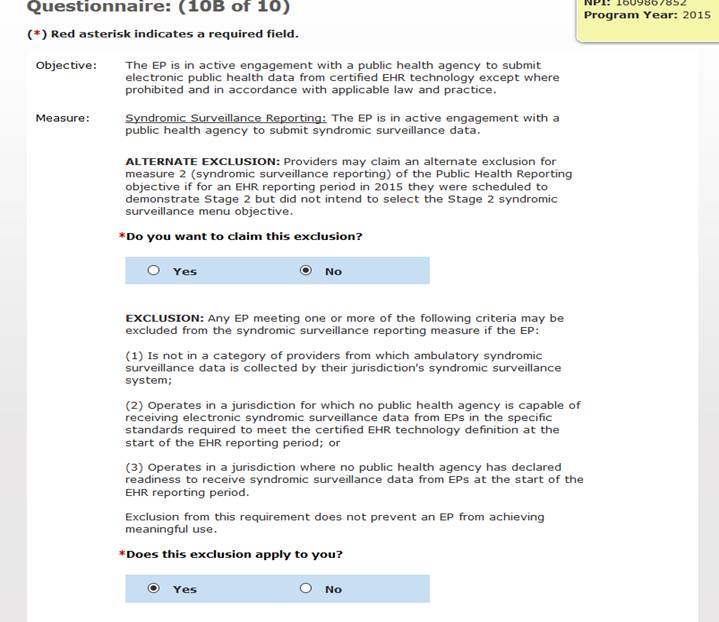
No for alternate exclusion, Yes for Exclusion 2.
In 2015, only emergency rooms report syndromic disease information in most states.
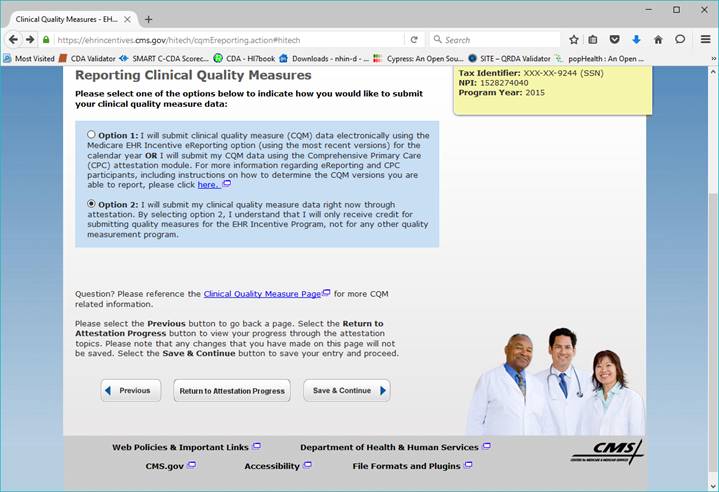
Select Option 2 and Continue
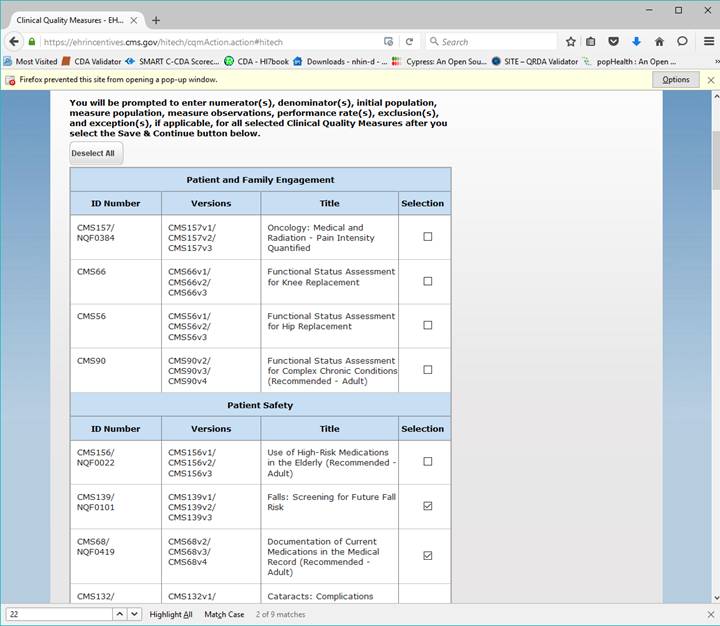
Select 9 appropriate measures based on your attestation report and continue.
Enter data for 9 Quality Measures
Example of One Quality Measure entry screen.
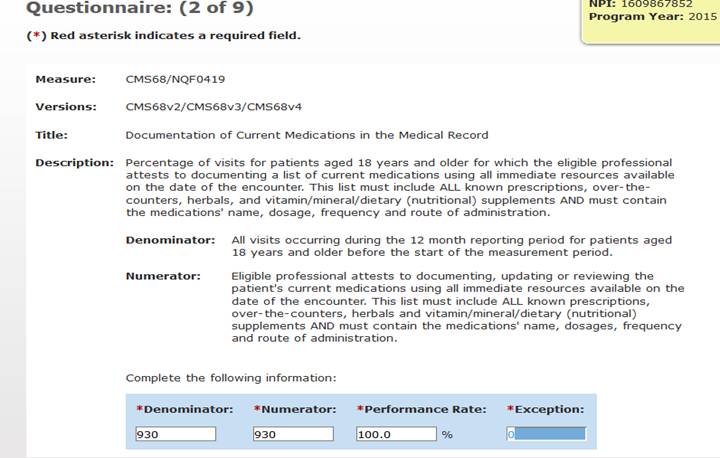
Enter denominator, numerator and exclusion/exception numbers from the quality section of the attestation report
Please note that the numerator / denominator fields have switched to denominator / numerator. ( Example above )
Double Checking:
There is a meaningful use test calculator link which has limited use since it has not been updated to match "Modified Stage 2". This could be used as an educational exercise.
http://www.cms.gov/apps/ehr/meaningful-use-calculator-professionals.aspx
Be sure to agree and submit your attestation before the deadline.
Once you have done the submission, do not accidentally "Modify" the already submitted attestation. If there is a good reason to Modify, this can be done, but be sure to re-submit again or you will not get credit.