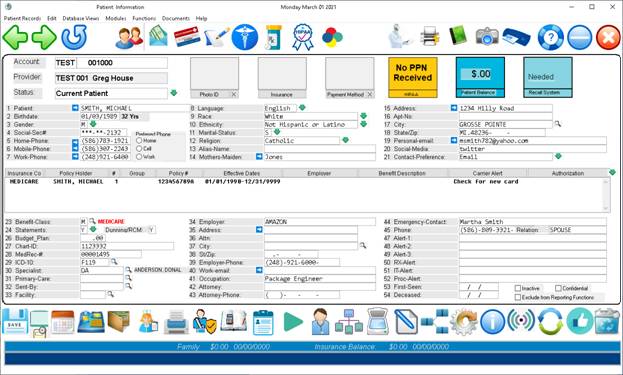
Adding a New Patient
Click
on #1 Front Desk (or at the prompt type 1 –enter)
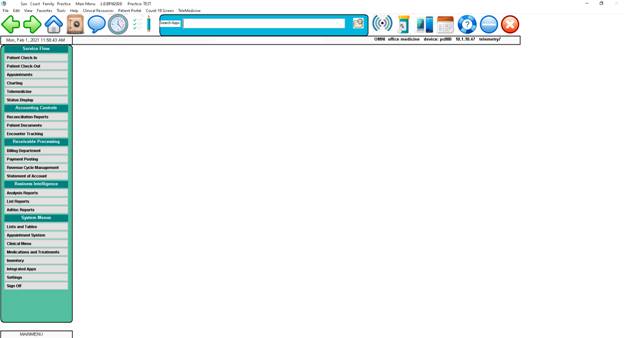
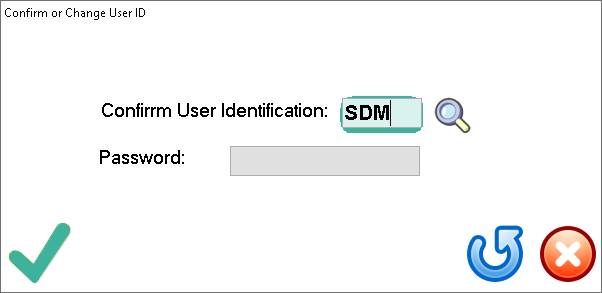
It
will verify user: hit enter on keyboard or click on √
At this screen hit enter or click on “+ ADD”
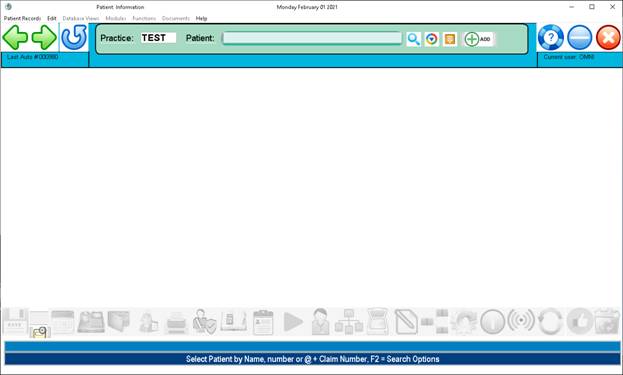
This
window will come up: click on Yes
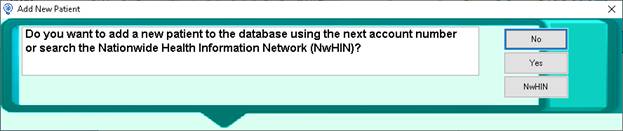
At
this window you will be asked which doctor is this patient for: enter doctor
number
Enter
through remaining boxes or click the √
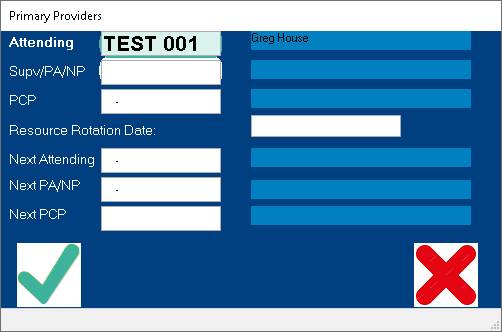
This
screen will appear: enter patient
demographics, benefits, etc.
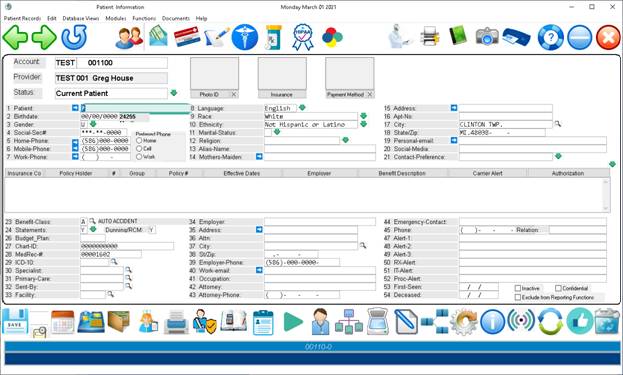
Add
insurance information & scan insurance card(s)
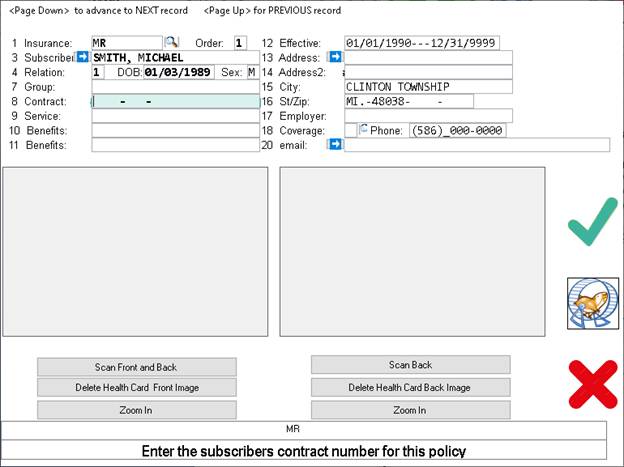
At
this screen you click done if they only have one insurance or click add policy
and another insurance screen will show up and you will add the 2nd
insurance. Like if a patient has
Medicare and BCBS.

When
done entering insurance it will take you back to the original demographic
screen and as the benefit code like B for BCBS, or M for Medicare only as your
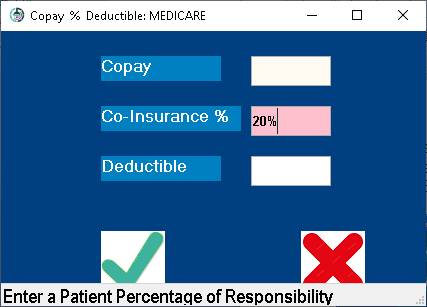
system codes are set up. Enter copay, etc.
After
all applicable fields are filled in click on the “SAVE” icon or Escape Key at
the prompt to take you back to main menu.