Post a copay/payment from a Patient
From
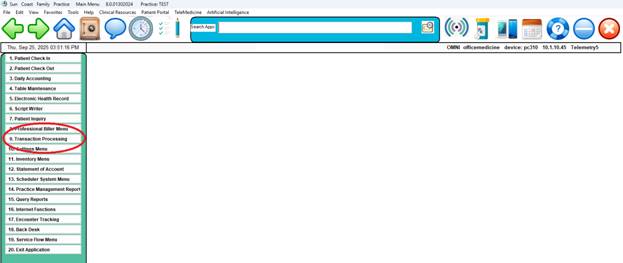
the Main Menu click on #9-Transaction Processing
Click
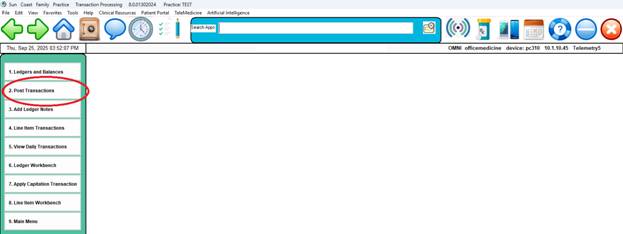
on #2 – Post Transaction
1.
Enter
your Initials when prompted.
2.
Now
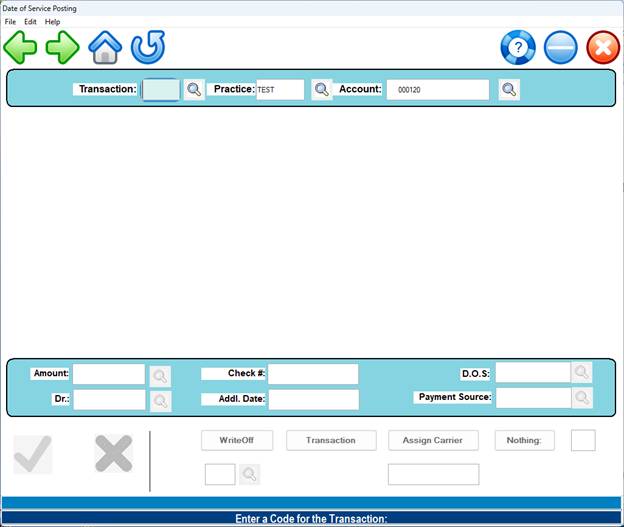
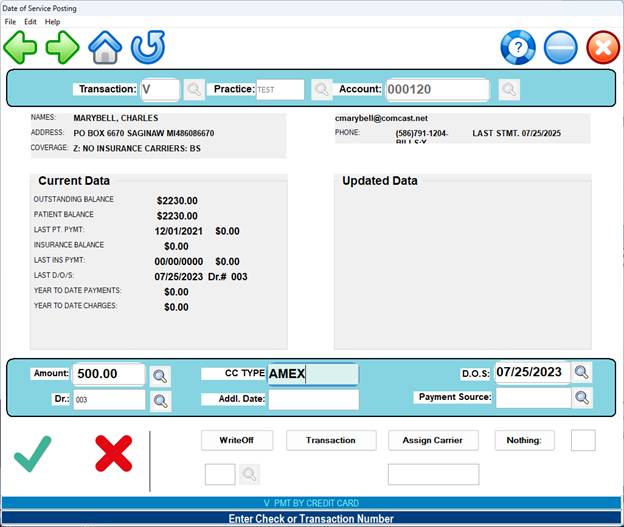
enter the type of payment code. Examples: “C” for cash, “V” for Credit card,
“K” for check payment ( See Example Below).
Enter the account number or search for the patient if you do not know
the account number.
3.
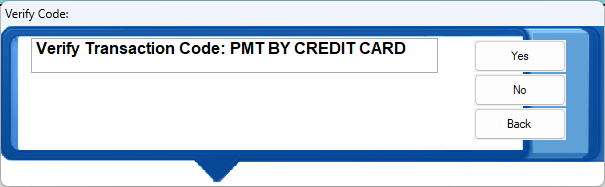
Verify the
tranaction code type being used:
Posting screen showing
selected patient and proposed $500.00 payment.
4.
Enter the
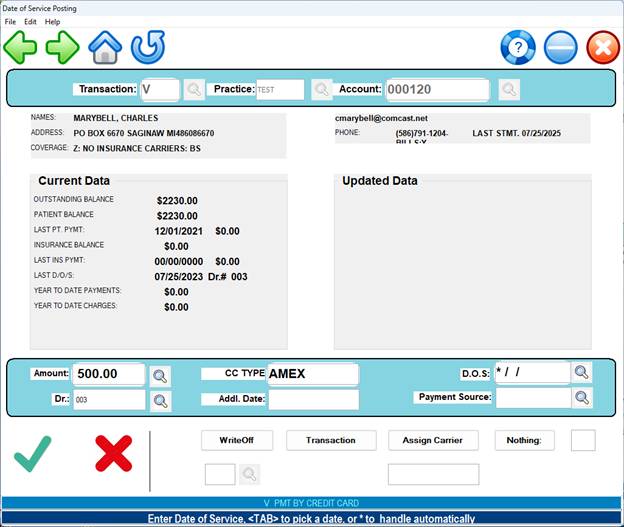
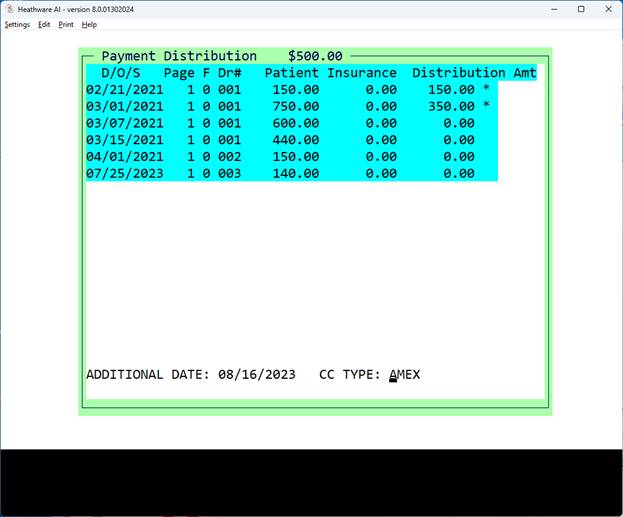
transaction amount, DOS – usually the last service date. HOWEVER, if you enter an * in the DOS
field, a screen will allow automatic application of monies to all the open dates
of service listed in the window starting from oldest going forward. If you want to skip an auto pay of a certain
date of service from this window, space out the “*” at the end of the line and
the system will reallocate the payment.
5.
6.
For advance or
overpayments, there will be a window warning about the situation – click yes.

7.
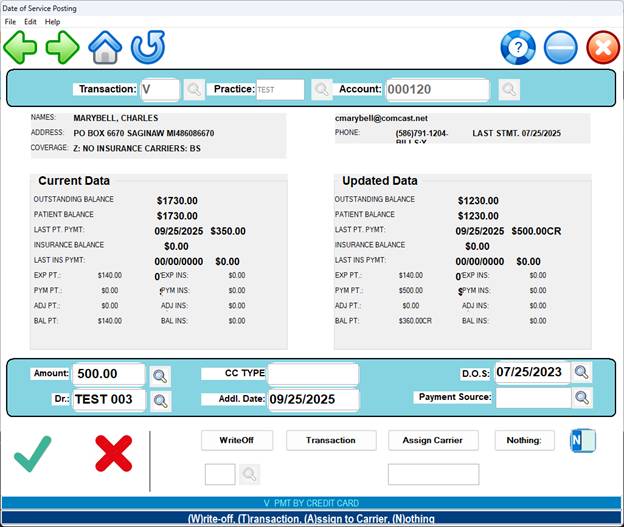
Enter through the “N” ( Nothing) and click on
the “Green Check Mark” Click on the
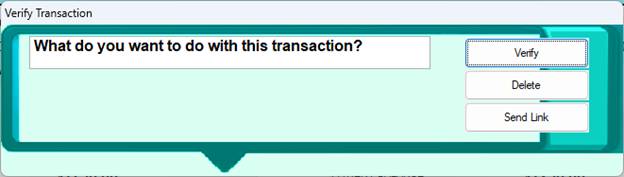
Verify button. Decide if you want to
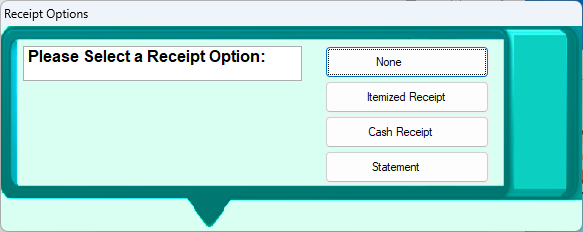
give the patient a reciept, statement or neither – usually neither. Click on “Back” to get you to former menu.
8.
After
posting, a receipt options window will prompt for the type of receipt
9.
(if
any )
10.
Please note: Patient
payments may also be done through line item posting.