REVENUE
CENTERS
OVERVIEW: The Revenue Centers Dictionary allows a Practice
to create a database which will group certain procedures from the procedure
code table together for a financial report called the Revenue Center Report.
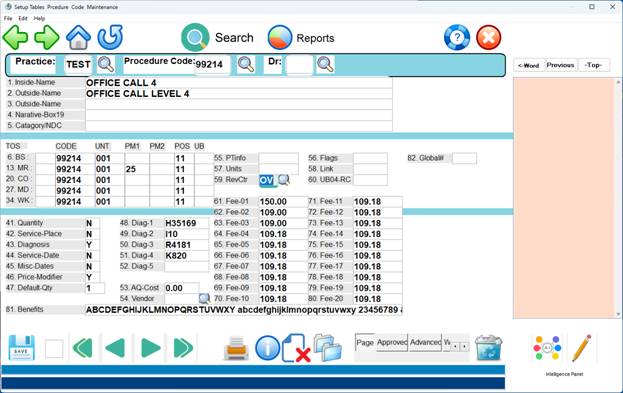
This is done by defining a code in this table and then placing the code in the
Revenue Center Field on the procedure codes to be group under this code.
Example Screen from the Procedure Code Table:
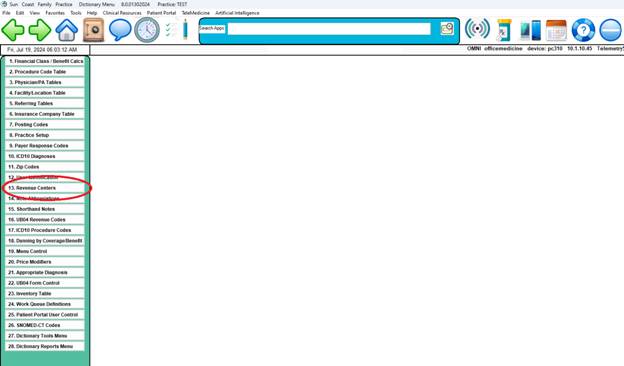
PROCEDURE: From the Dictionary Menu select Option 13,
Revenue Centers, and press <Enter>.
EXAMPLE MENU:
After you select Option 13, a screen similar to the one on the next page will be
displayed.
EXAMPLE SCREEN:
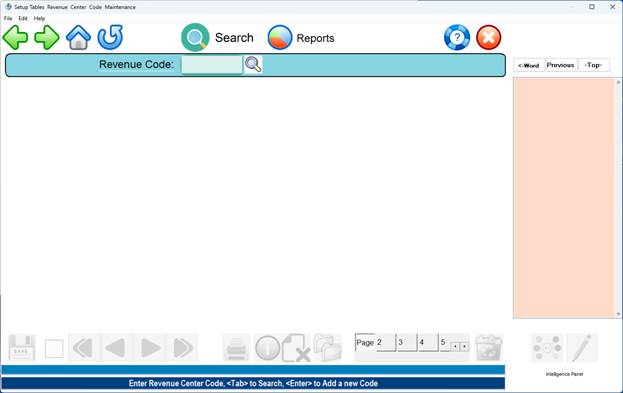
EXAMPLE: ENTER CODE: OV
If the code you entered is not yet in the system, the message below will be displayed.
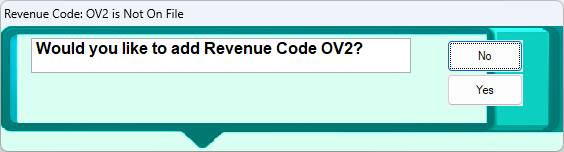
Type a Y for Yes or Click “Yes”.
The screen on the next page will be displayed.
EXAMPLE SCREEN:
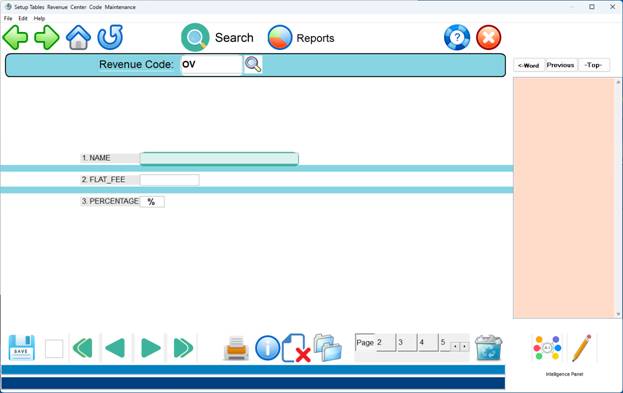
Your cursor will be flashing in Field 1 (Name). After each entry,
press <Enter> to store data and move to the next field.
DEFINITION OF FIELDS:
1. NAME: Enter the full name of the revenue code.
2. FLAT FEE: Special Amounts for Clinician Payroll.
3. PERCENTAGE: Percent of the billed amount for the third party
administration fee.
After completing all fields, the cursor will be at the Action Line located to the lower left corner of the screen. See example screen below:
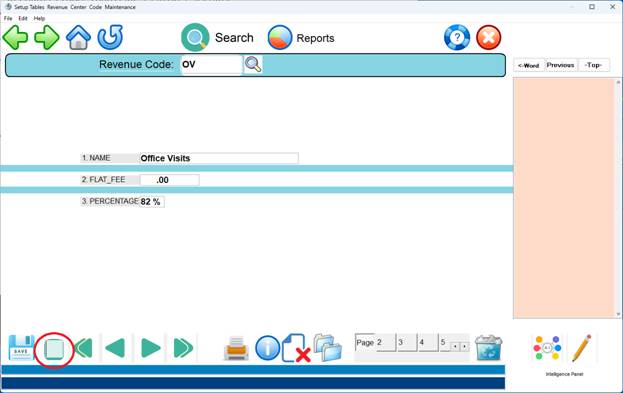
Please see the following page for an explanation of Action
Line functions.
DEFINITIONS OF ACTION LINE FUNCTIONS:
 Enter # to Correct: Enter the number of the field you need
to
Enter # to Correct: Enter the number of the field you need
to
correct and press <Enter>. The cursor will move to the first
character on that line (information on that line will not be
erased). You may retype the entire line, or position the cursor
on the character that needs correcting. Press <Home> to go
back to the Action Line.
(P)rint: Type P and press <Enter> to print a hard copy of the
information. The system will open a window in the middle of your
screen listing output devices. Please see the example screen below.
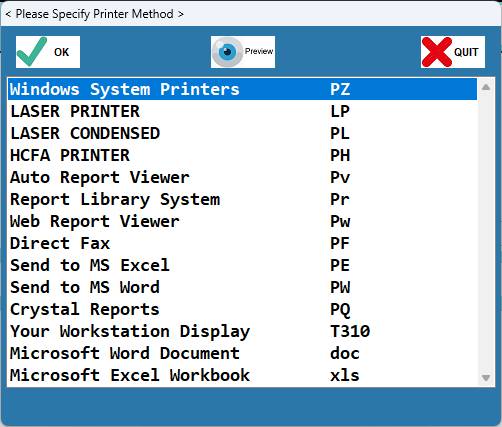
You may also use the <Up>/<Down> Arrow keys to highlight your selection and
press <Enter>. (F)orward: To go forward one code (numerically or
alphabetically) type F and press <Enter>. (B)ack: To go back one code
(numerically or alphabetically) type B and press <Enter>. (K)opy: To make a
copy of this information, be sure to press 0 (zero) and <Enter> to save it before
you copy) and assign it a different code, type K, and press <Enter>. The cursor
will move to the ENTER CODE prompt. Enter the Code you wish this information
copied to and press <Enter>. Use (D)elete: if you want to delete this entry from
the system, enter a D and press <Enter>.
(V)erify: Type V to verify the original entry date and the
date this screen was last updated. Esc=END: To exit and save your information,
type a 0 (zero) and press <Enter>. The cursor will return to the ENTER CODE
prompt. You may continue entering other codes, or type a 0 (zero) and press
<Enter> again to go to the Dictionary Menu.
SEARCH: To search for a Revenue Center code, at the ENTER CODE
prompt press <Tab>. The system will open a window and display
an alphabetical listing of all codes in the system. You may use
the <Up> or <Down> Directional Arrow keys to highlight your
selection and press <Enter>; or type the number that is listed
to the far left of your selection and press <Enter>.
<Tab> or <F2> =Add: When in a Search screen, if you need to add a
Revenue Code, press <Tab>. The system will return you to
the ENTER CODE prompt. You may enter the code, and when you
go back to the Search screen that code will be be displayed
along with the others.
To exit the search screen, press escape or type 0 (zero) and press <Enter>.